Recreate a real road from a map
This lesson takes a real-world location as the starting point. You turn on the Road or Satellite background, rotate the canvas so the road faces a comfortable direction, and trace lanes by hand against the photo underneath. The bonus section at the end shows the one-click generator that pulls lanes from OSM data directly.
1. Switch on the map background
Section titled “1. Switch on the map background”Open the menu (top-left) and find the Map row:
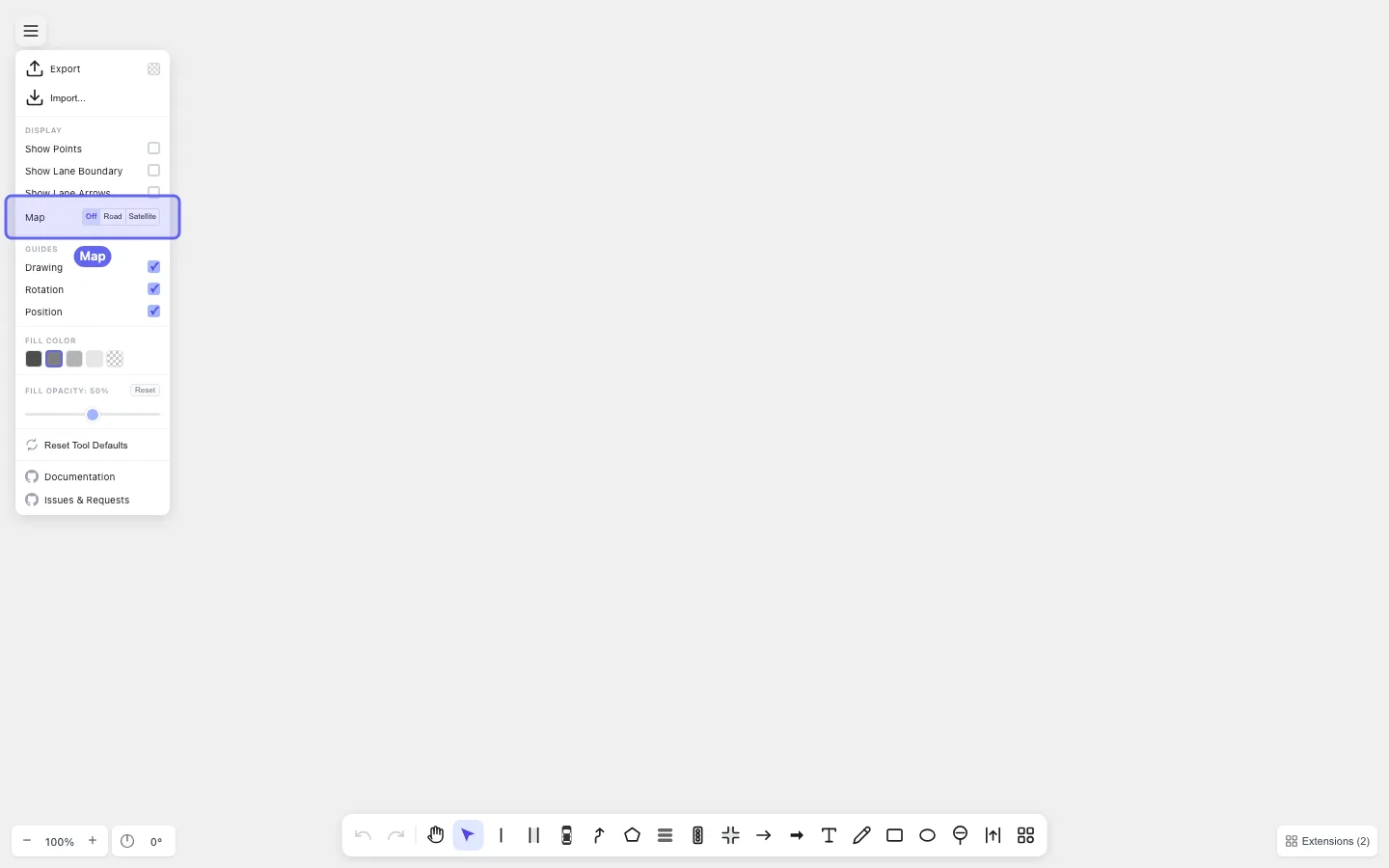
Pick Road for the schematic OpenStreetMap view, or Satellite for the photographic one. The map renders behind everything you draw and stays anchored — drawing on top doesn’t move it.
To turn it back off, pick Off from the same row.
2. Align the canvas with the rotation control
Section titled “2. Align the canvas with the rotation control”The bottom-left corner has two compact panels:
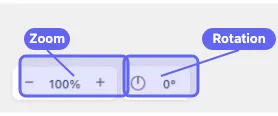
- Zoom —
−and+buttons with the current percentage between them. You can also pinch or scroll-wheel to zoom. - Rotation — a compass icon and the current angle (
0°by default). Use this to spin the canvas so the road is easier to follow with the cursor.
Working with rotation:
- Click the compass to enter rotation mode. The cursor turns into a rotation handle; drag on the canvas to rotate the whole canvas (and the map background with it).
- Click the compass again to leave rotation mode.
- Double-click the compass to reset back to
0°.
Rotate until the stretch of road you want is roughly horizontal or vertical — whichever feels more comfortable to trace.
3. Trace the road with the Lane tool
Section titled “3. Trace the road with the Lane tool”Press N for the Lane tool. The Lane creation panel opens on the right. Center Line mode is selected by default.
If the road in the map is curved, switch on Smooth Boundary in the panel before clicking — the lane boundaries will follow a smooth curve instead of a polyline. (See Smooth lane boundaries if you want a refresher.)
Click along the centre of the road in the map, dropping a point each time the road changes direction noticeably. Press Enter to finish the lane.
A few tips while tracing:
- Adjust Lane Width in the panel before drawing if the default doesn’t match the road on the map.
- Hold Shift while clicking to bypass snap for one click — handy when you want a point near, but not exactly on, an existing one.
- For multi-lane roads, draw each lane separately. Once one boundary is in place, you can use Boundary mode for the next lane and have it share that boundary automatically.
4. Save
Section titled “4. Save”Once the traced road looks right, export as drawtonomy.svg so the map background, lane geometry, and connections all round-trip when you reopen the file. See Export your scene.
Bonus: one-click lane generation
Section titled “Bonus: one-click lane generation”If you trust the OSM data for the area, drawtonomy can convert roads directly into editable Lane shapes — no tracing required.
With the Map background on:
- Press N for the Lane tool, then enable Generator mode in the toolbar.
- Click a road segment to convert just that segment into a Lane.
- Drag a rectangle over an area to convert every road inside it in one batch.
This is a shortcut, not a replacement for tracing. The output is just normal Lane shapes — refine with segment editing, smooth them, or wire up missing connections afterwards.
For complex or unfamiliar areas, tracing by hand often produces a cleaner result than the generator, since OSM road data can be noisy or use a centerline that doesn’t quite match the satellite image.
What you learned
Section titled “What you learned”- The map background lives in the menu’s Map row, with Off, Road, and Satellite options.
- The bottom-left Rotation compass spins the whole canvas so
the road is easier to trace; double-click resets to
0°. - Tracing roads with the Lane tool gives full control over geometry; the Lane Generator is a one-click shortcut for when OSM data is good enough.
What’s next
Section titled “What’s next”- Manage lane connections — wire up Next/Previous so the road network is connected, not just visually adjacent.
- Import a Lanelet2 (.osm) file — when you already have a curated map file rather than raw OSM.