Use the Lane tool — draw lanes from a centerline or boundaries
Press N for the Lane tool. A panel opens on the right and stays visible while the tool is active. The top of the panel is the CREATION MODE switch:
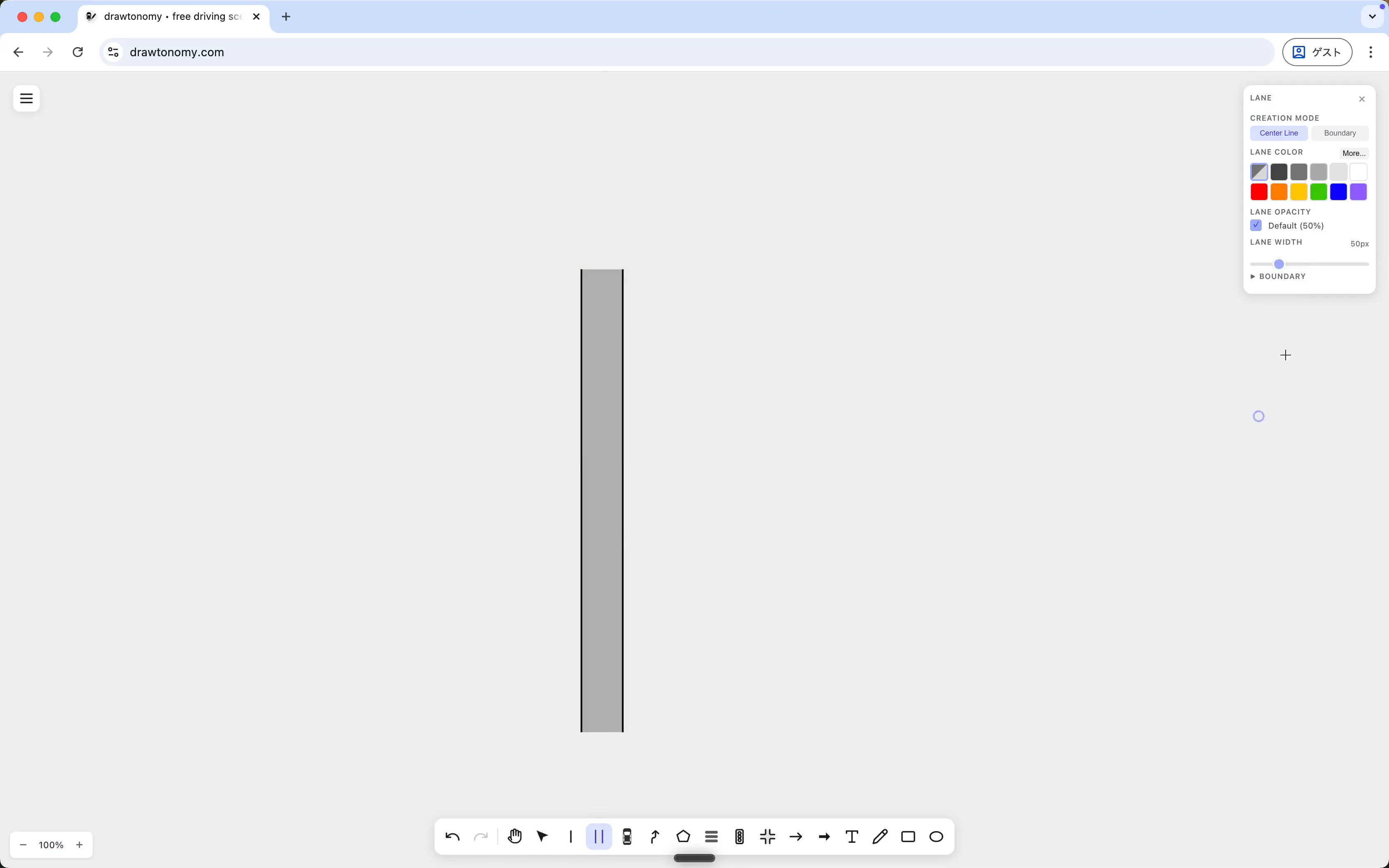
The two modes do different things; pick the one that matches your situation.
Center Line mode
Section titled “Center Line mode”You draw the centerline; drawtonomy generates the left and right boundaries from the Lane Width value. Use this when you’re starting from nothing.
- Click on the canvas to drop the first centerline point.
- Click again to drop the next, and so on.
- Press Enter (or double-click the last point) to finish.
The Lane tool stays active, so click again somewhere else to start a new lane. Two lanes drawn this way:
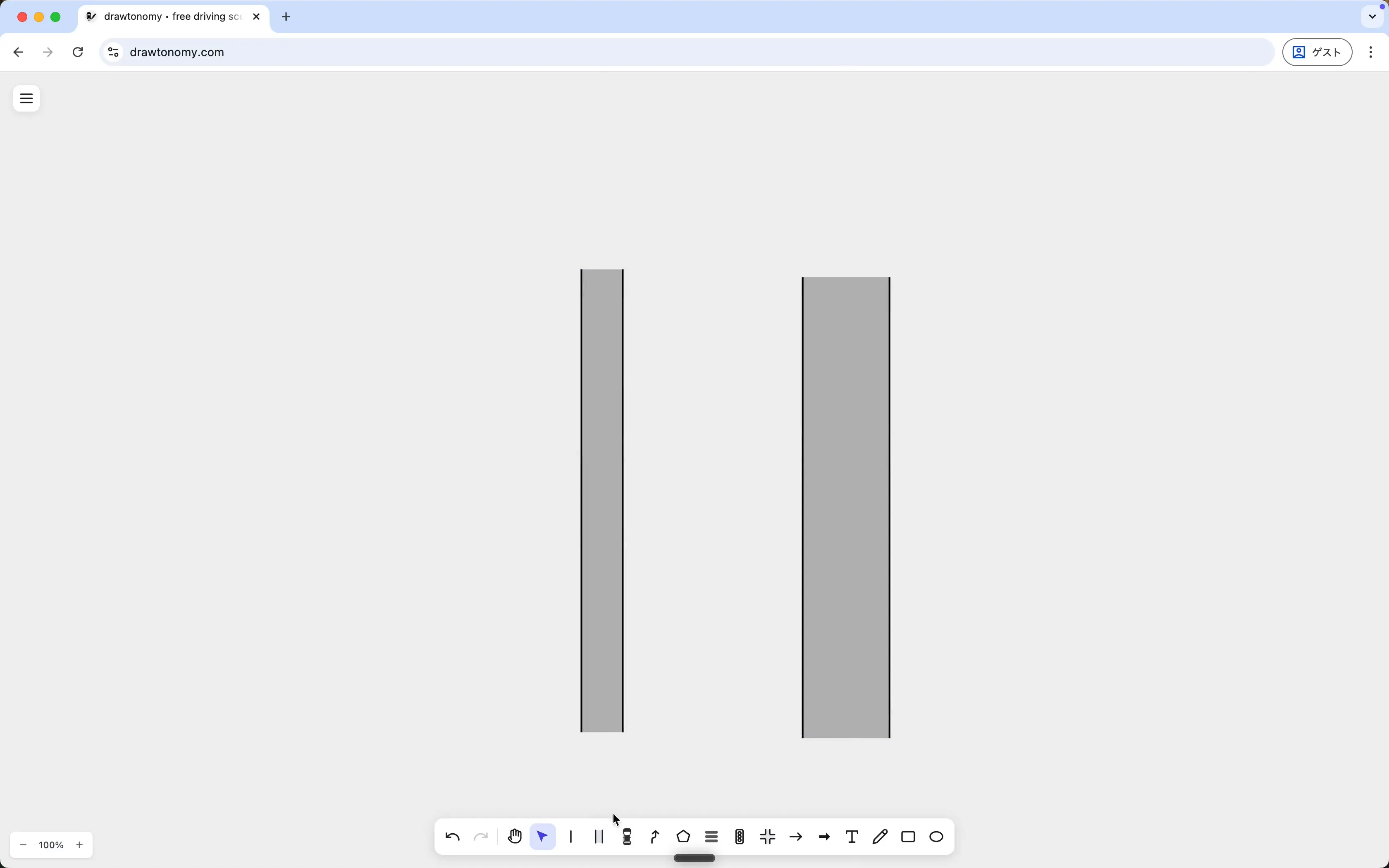
You can change Color, Opacity, or Lane Width in the panel between lanes — the new value applies to the next lane you draw, not the selected one.
Boundary mode
Section titled “Boundary mode”Click Boundary at the top of the panel to switch modes. In Boundary mode you don’t click empty space; you click two existing boundary linestrings, and drawtonomy makes a lane that uses them as its left and right boundaries.
Hover a linestring — drawtonomy highlights it in indigo when the cursor is close enough — and click:
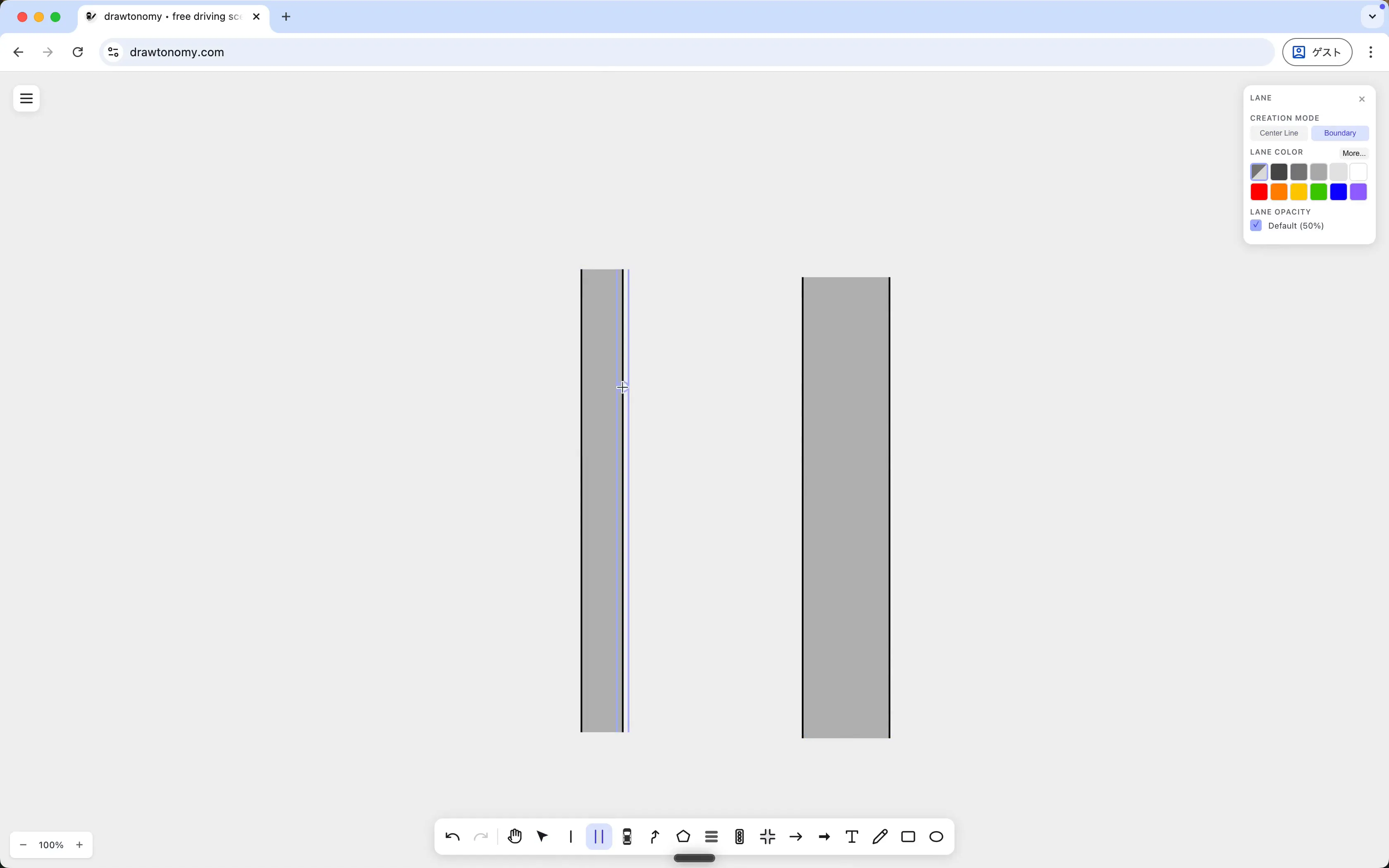
Click a second linestring and a new lane appears between them. The new lane shares both boundaries with whatever else uses them, so moving a boundary point updates every lane that depends on it.
Use Boundary mode when you already have geometry (drawn by hand, imported from Lanelet2, or generated by Lane Generator) and want lanes to fit between it.
Inspecting a lane
Section titled “Inspecting a lane”Press V for Select, then click a lane. The panel switches to the lane’s attributes:
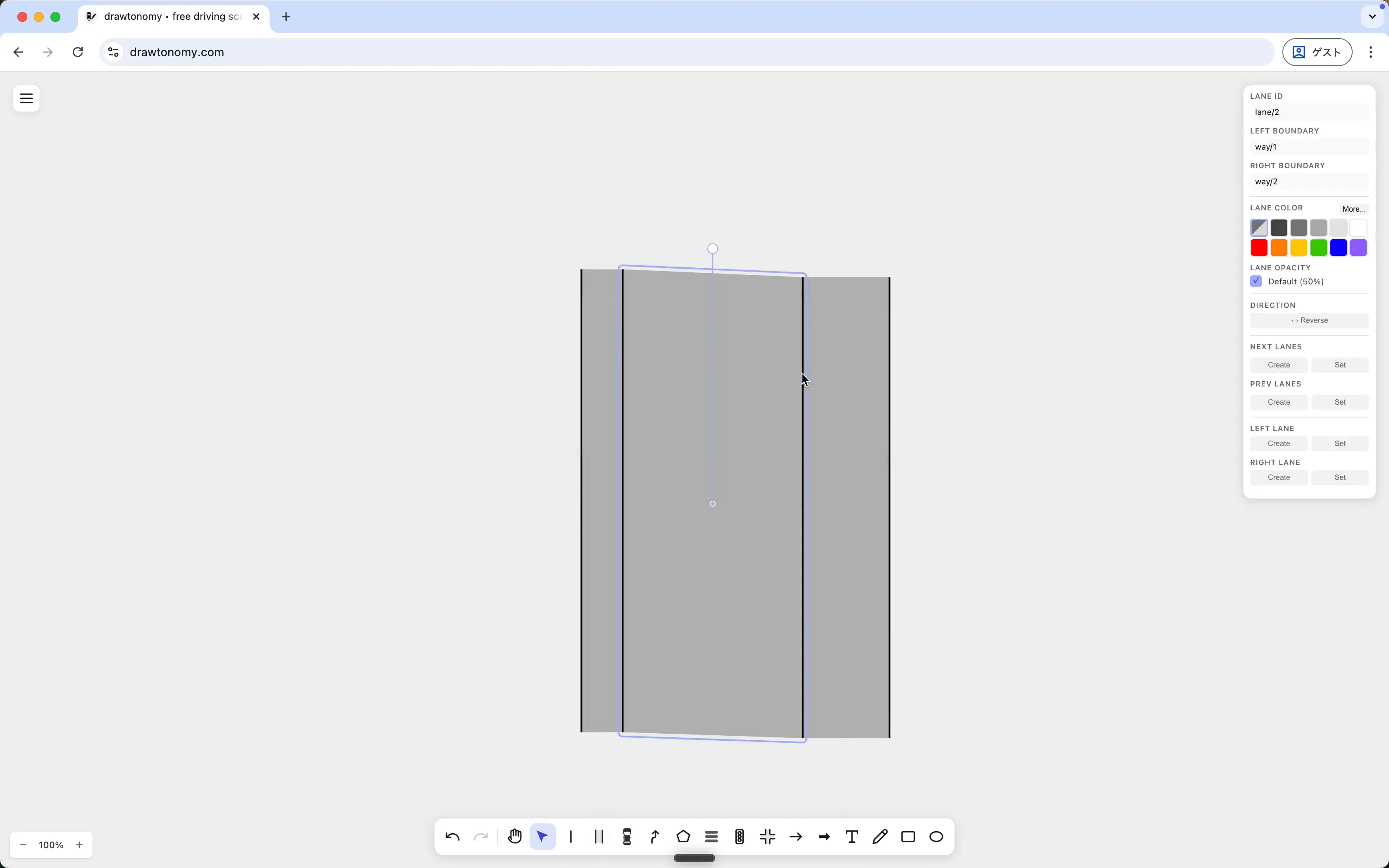
What’s shown:
- Lane ID and the IDs of the Left Boundary /
Right Boundary linestrings (e.g.
way/1,way/2). Two lanes that share a linestring will show the same ID here. - Lane Color, Lane Opacity, Direction (Reverse) — the visual and topological settings for the lane itself.
- Next Lanes / Prev Lanes / Left Lane / Right Lane — the four connection slots, each with Create (make a new neighbouring lane) and Set (point at an existing one). See Manage lane connections.
See also
Section titled “See also”- Smooth lane boundaries — the Smooth Boundary toggle in the same panel turns angular boundaries into splines.
- Manage lane connections
- Lane connection model — why shared boundaries are the foundation of drawtonomy’s road model.