
Type a LaTeX equation on the canvas
This lesson teaches you the Math tool — the fx icon in the
toolbar. You’ll type a LaTeX expression, watch a live KaTeX
preview render under your cursor, recolor and resize the result,
and export it as SVG or PNG. The exported file can drop straight
into a paper figure, a slide, a Notion page, or a blog post.
The Math tool is part of drawtonomy’s infinite whiteboard, so the same canvas can also hold lanes, vehicles, and pedestrians — handy when an equation needs to live next to the diagram it explains. But you don’t have to use any of that: the Math tool also works on a blank canvas as a standalone equation editor.
1. Pick the Math tool
Section titled “1. Pick the Math tool”Open drawtonomy.com. In the bottom
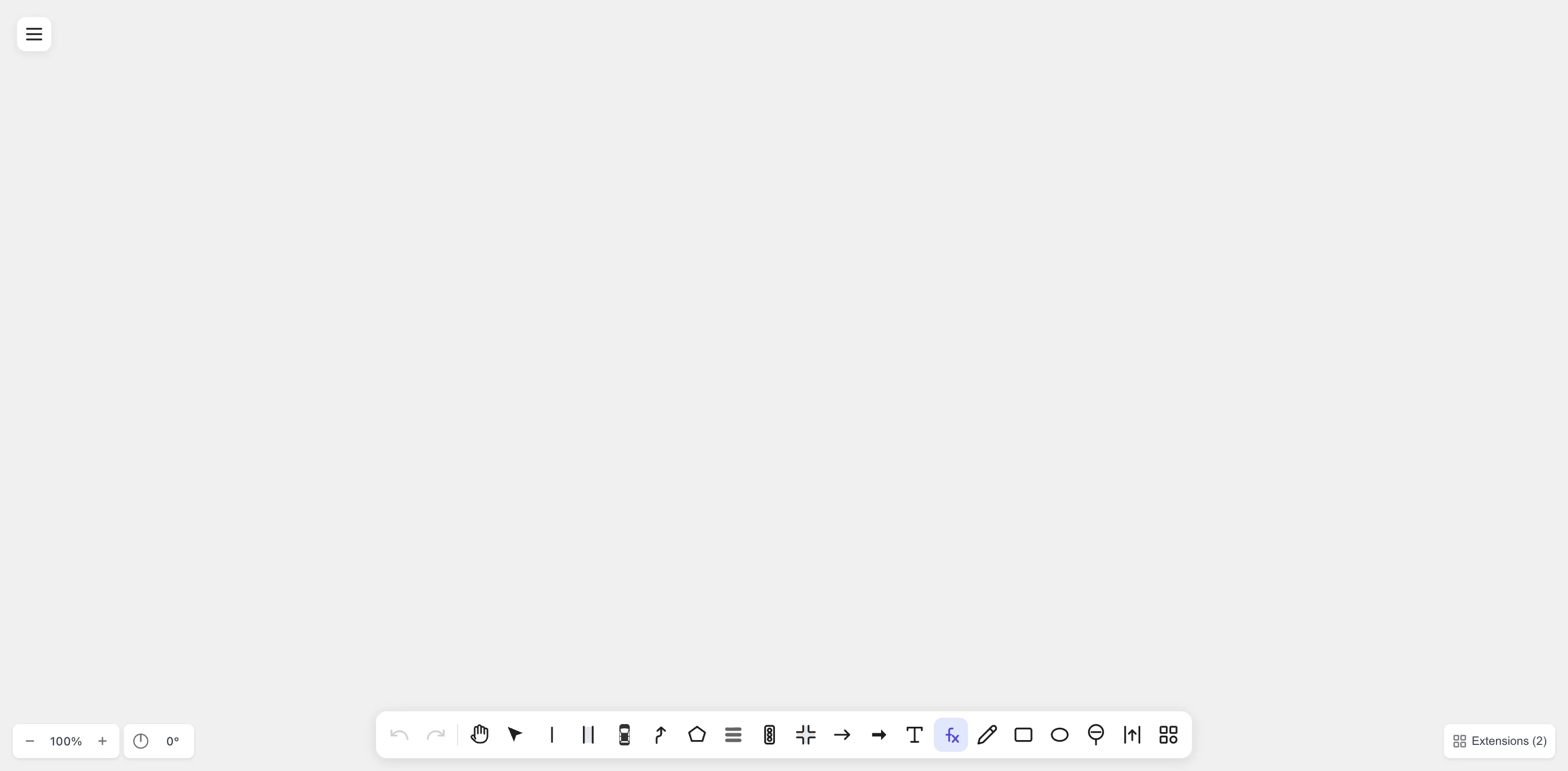
toolbar, click the fx icon — it sits between the Text (T)
and Freehand tools:
Tip: if you’d rather use the keyboard, press / — that’s the Notion-style shortcut for the Math tool.
2. Click where the equation should go
Section titled “2. Click where the equation should go”Click anywhere on the canvas. drawtonomy opens an inline editor in place. The top half is a plain-text LaTeX input, the bottom half is the live KaTeX preview. A faint placeholder shows the quadratic formula as an example.
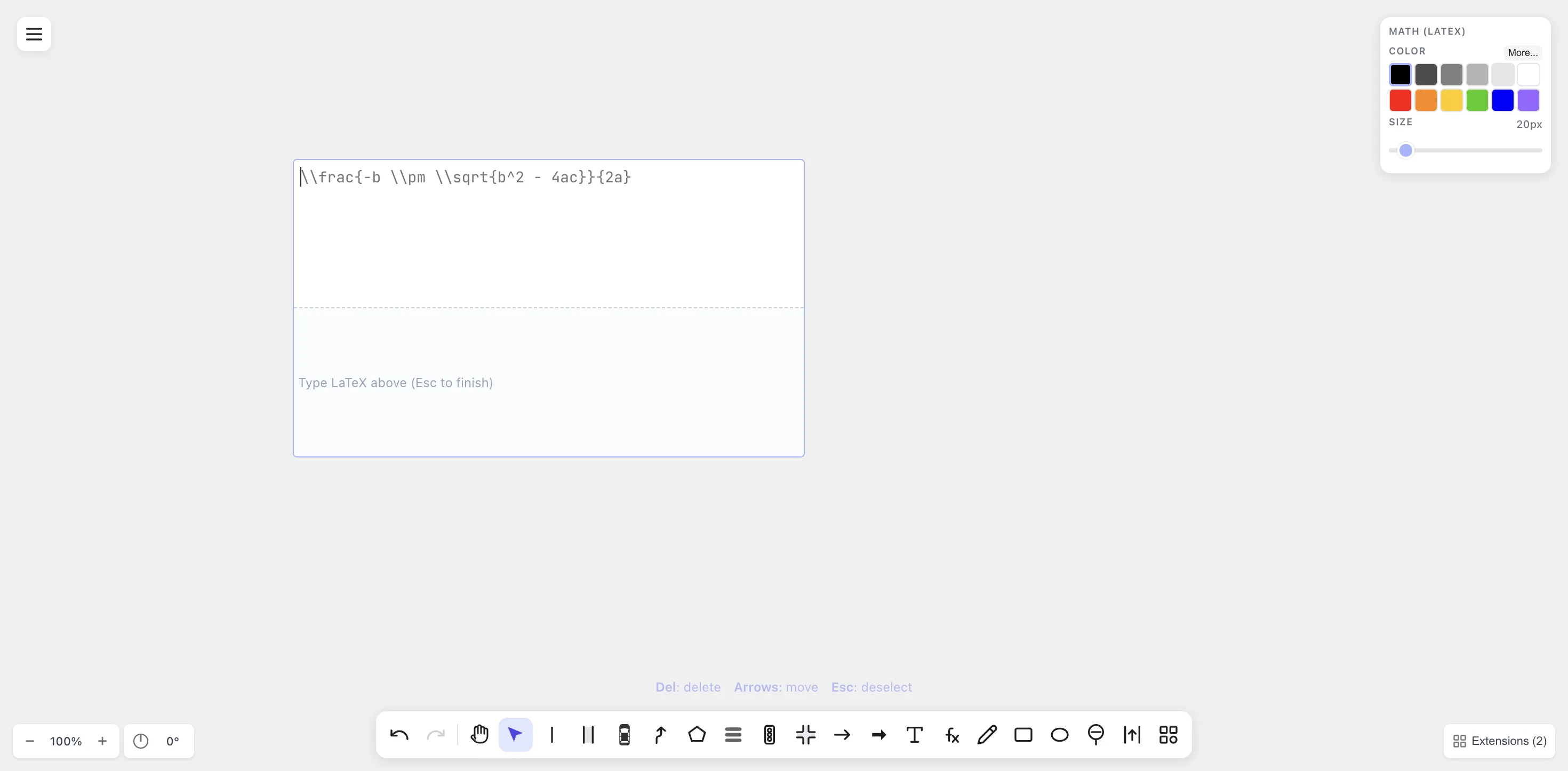
The keyboard hints at the bottom — Del: delete · Arrows: move · Esc: deselect — show what you can do while the editor is open.
3. Type some LaTeX
Section titled “3. Type some LaTeX”Type a real expression. Try the classic:
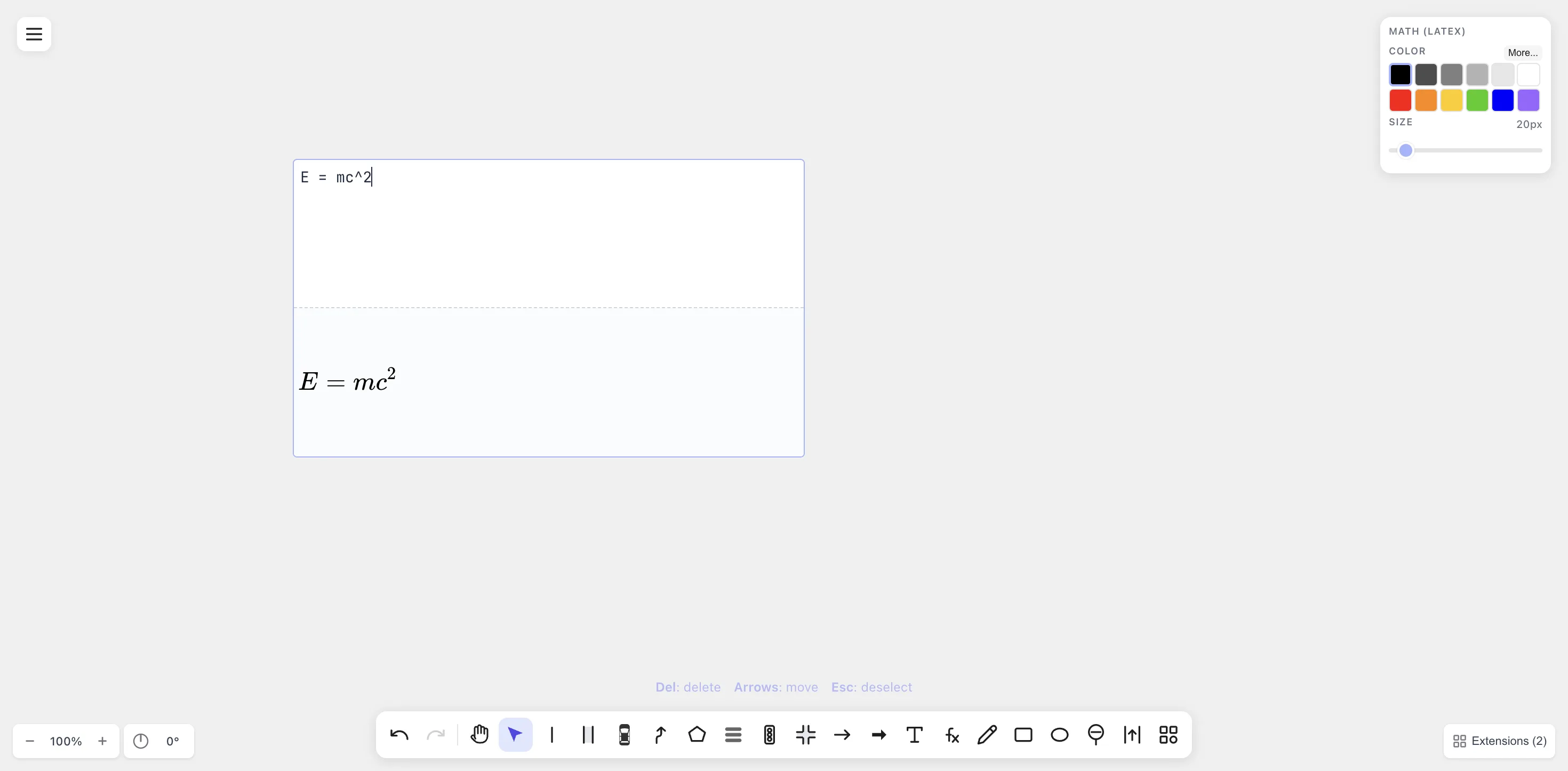
E = mc^2As you type, the bottom pane re-renders in real time. There’s no “render” button — every keystroke updates the preview:
Now try something bigger. Clear the input and type the quadratic formula:
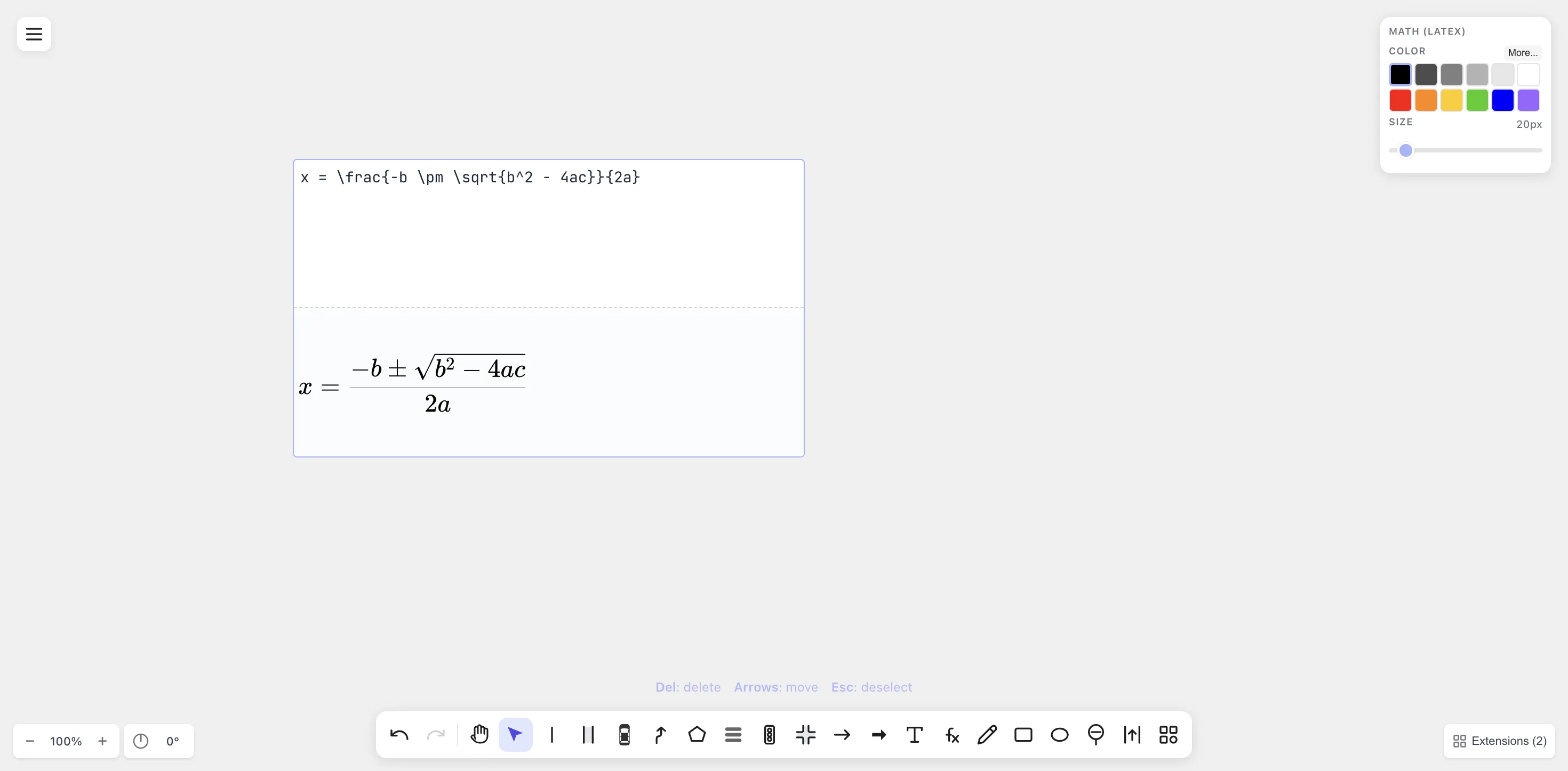
x = \frac{-b \pm \sqrt{b^2 - 4ac}}{2a}\frac, \sqrt, \pm, and ^ all render exactly as they would
in a paper:
The Math tool supports the full KaTeX vocabulary, plus the
mhchem extension for chemistry — see the
Math reference for the catalog.
4. Confirm: press Esc
Section titled “4. Confirm: press Esc”Press Esc (or click outside the editor) to finish editing. The textarea disappears and only the rendered equation stays on the canvas, sized to fit:
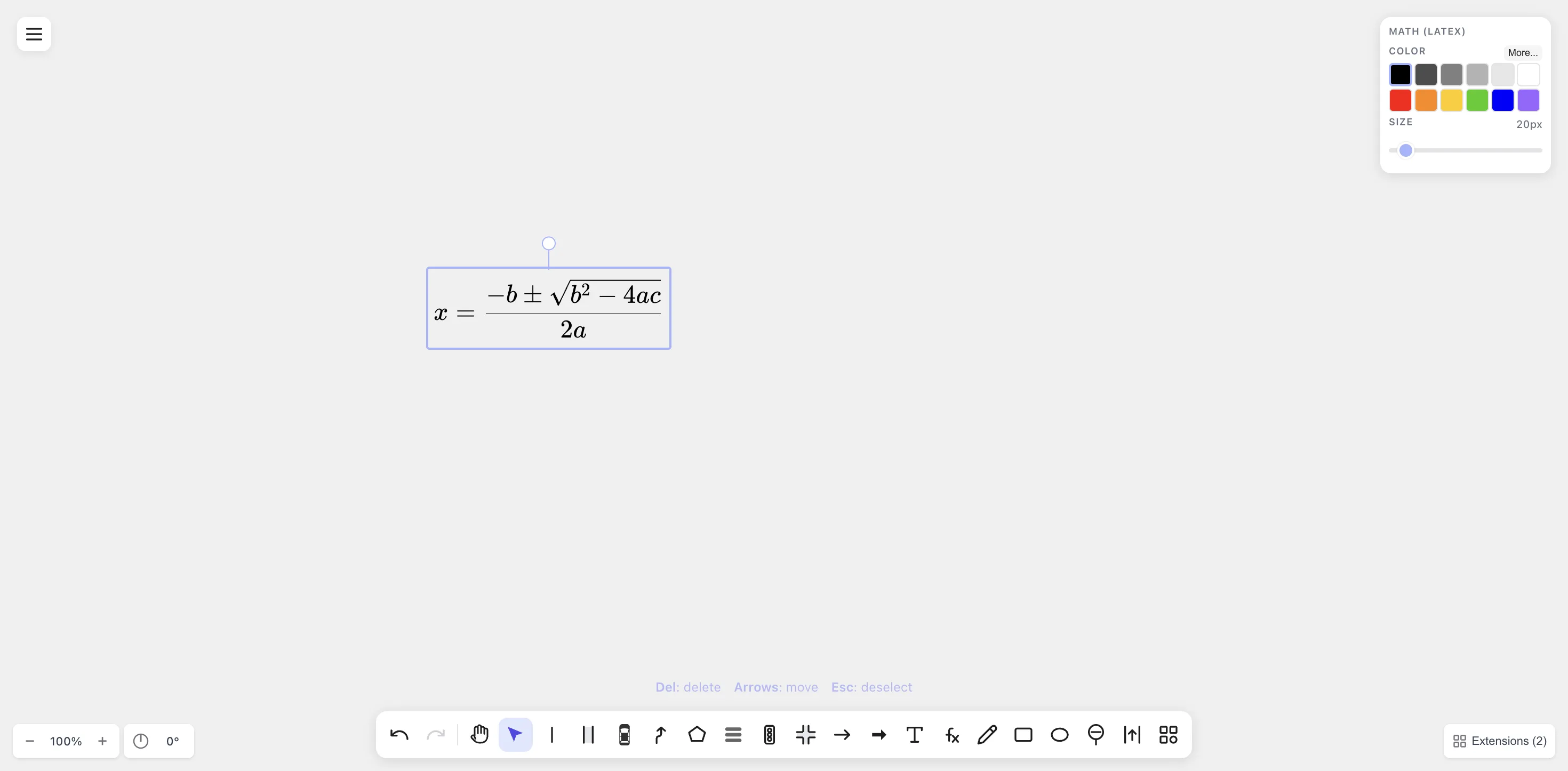
The blue outline is just the selection box. Click somewhere empty to deselect.
To re-edit, double-click the equation. The editor reopens with the original LaTeX source — drawtonomy stores the source, not just the rendered image, so every equation stays editable forever.
5. Recolor and resize
Section titled “5. Recolor and resize”With the equation selected, look at the Math (LaTeX) panel in the top-right corner:
- Color — click any swatch to recolor (paper-safe black, greys, red/orange/yellow/green/blue/purple). For brand-specific shades, click More… for the full palette.
- Size — drag the slider from 8 px (footnote-size) to 200 px (poster headline). The whole equation rescales proportionally.
Set the color to red and the size to 60 px:
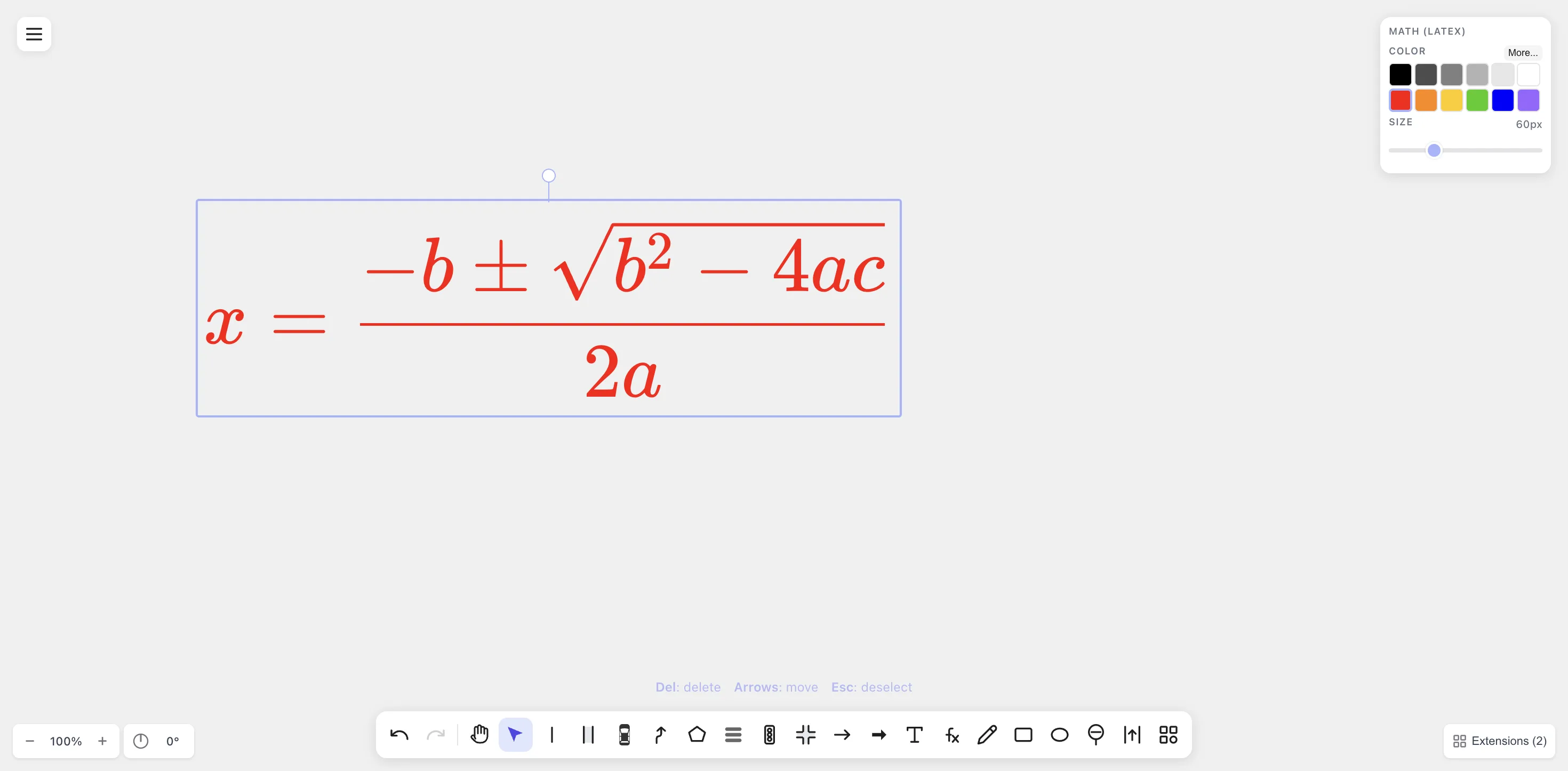
6. Export
Section titled “6. Export”When the equation looks right, export it. Menu → Export:
| Format | Best for |
|---|---|
| SVG | LaTeX (\includegraphics), Notion, websites, slides. Vector, scales cleanly. |
| PNG | Anywhere SVG is unsupported (Word, some chat apps). |
| LaTeX builds that require PDF figures. Text is path-converted, so no font dependencies. | |
| EPS | Older LaTeX toolchains (latex + dvips). Also path-converted. |
| .drawtonomy.svg | drawtonomy’s native format. A regular SVG you can re-open in drawtonomy to edit the LaTeX source. |
For day-to-day use, SVG and PNG cover almost everything. For LaTeX papers, PDF is the most predictable.
What else the Math tool can do
Section titled “What else the Math tool can do”A short tour of the rest:
-
Chemistry (mhchem) —
\ce{2 H2 + O2 -> 2 H2O}renders as a proper reaction arrow.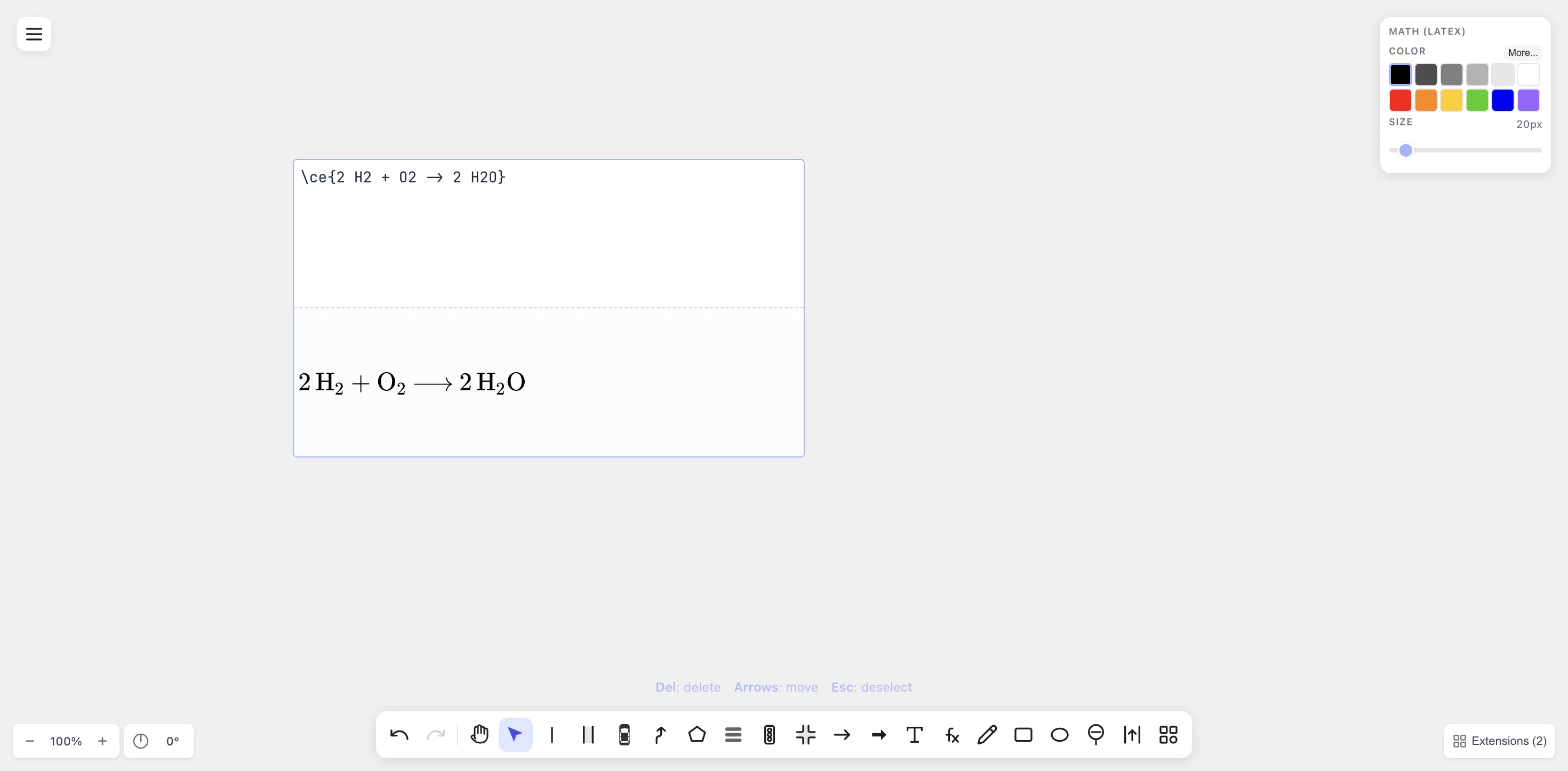
-
Multi-line systems with numbered equations — wrap blocks in
\begin{align} ... \end{align}for paper-style equation numbers. Equation bodies and tags(1)(2)(3)are guaranteed not to overlap, even at large sizes.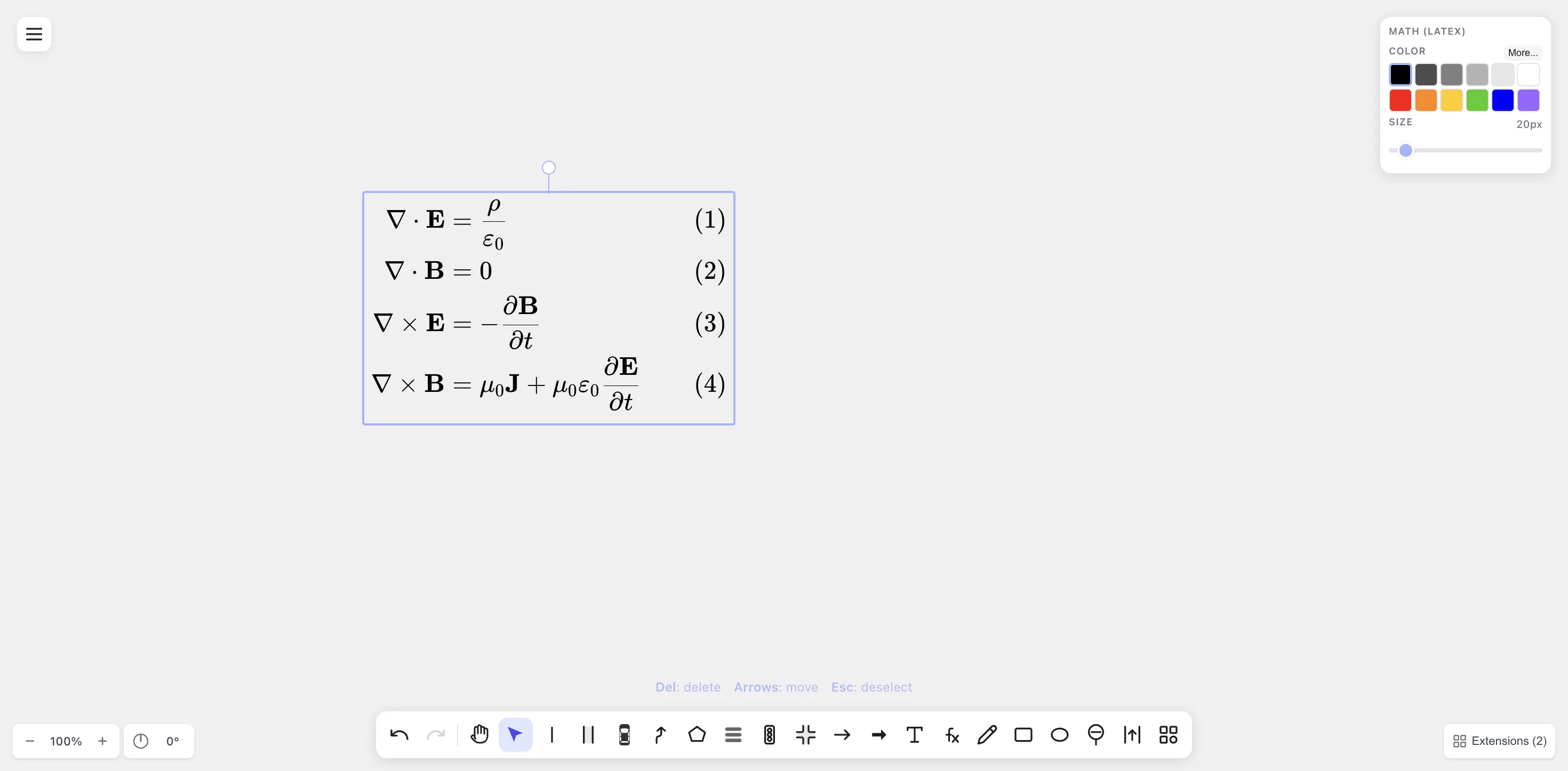
-
Long equations — the textarea wraps and the preview pane scrolls, so even half-page derivations stay editable.
-
Cmd+A then Delete — select every shape on the canvas (math included) and clear it.
-
Drag the input box — while editing, click-and-drag (5 px threshold) to nudge the editor without losing your place.
-
Undo / Redo — Cmd+Z / Cmd+Shift+Z. Color and size changes are individual undo steps; dragging the size slider collapses into one step.