Snap to existing geometry
Snapping is on by default and works across every tool. When the cursor gets close to an existing point or edge, drawtonomy locks onto it and lights up an indigo indicator.
Across shape types
Section titled “Across shape types”The demo runs three different tools against the same kind of target.
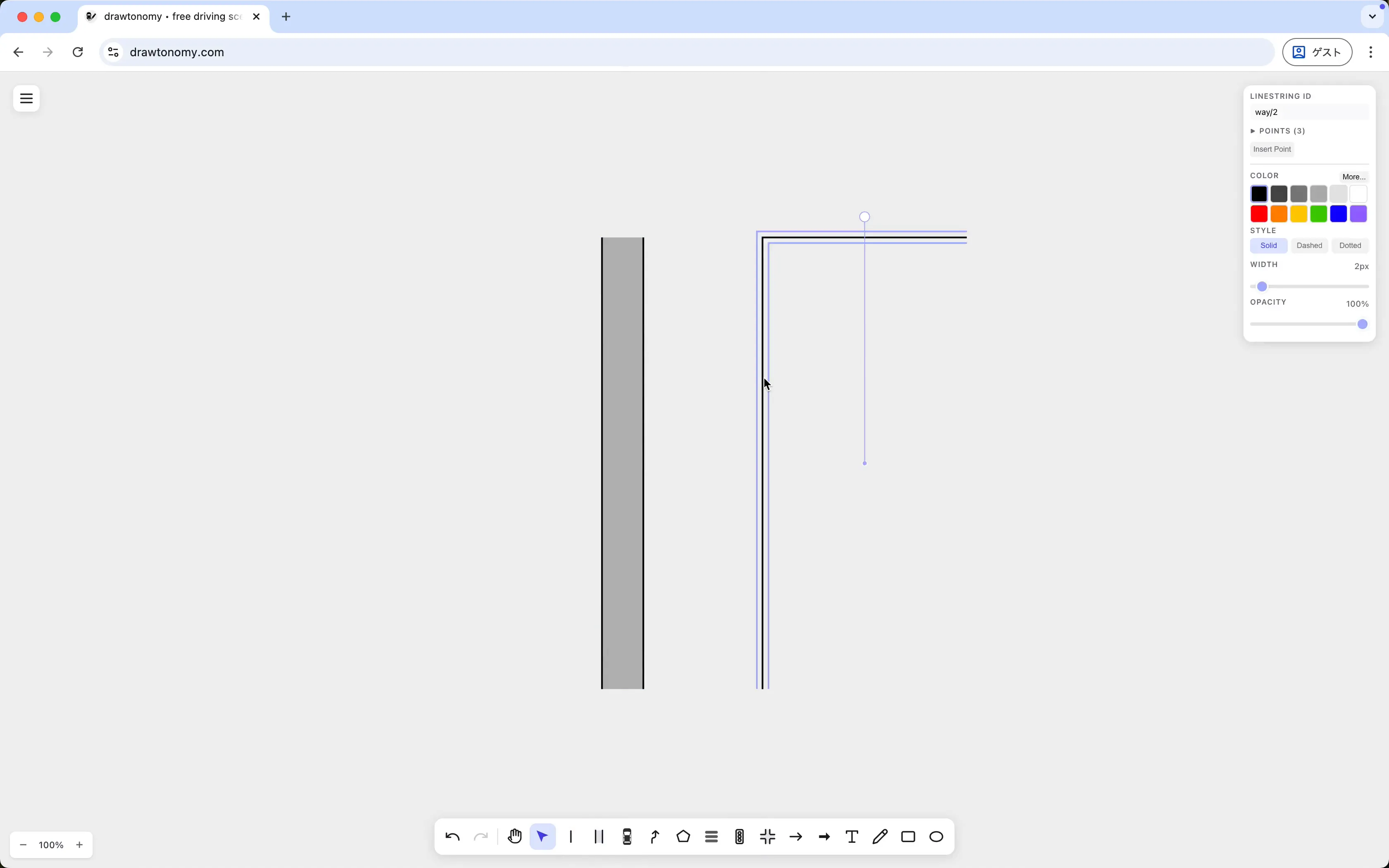
Linestring snaps to linestring
Section titled “Linestring snaps to linestring”Starting from a single vertical linestring, the second one is drawn so its corner lands exactly on the first’s top edge. The result is a right angle that shares a point — not just visually overlapping pixels.
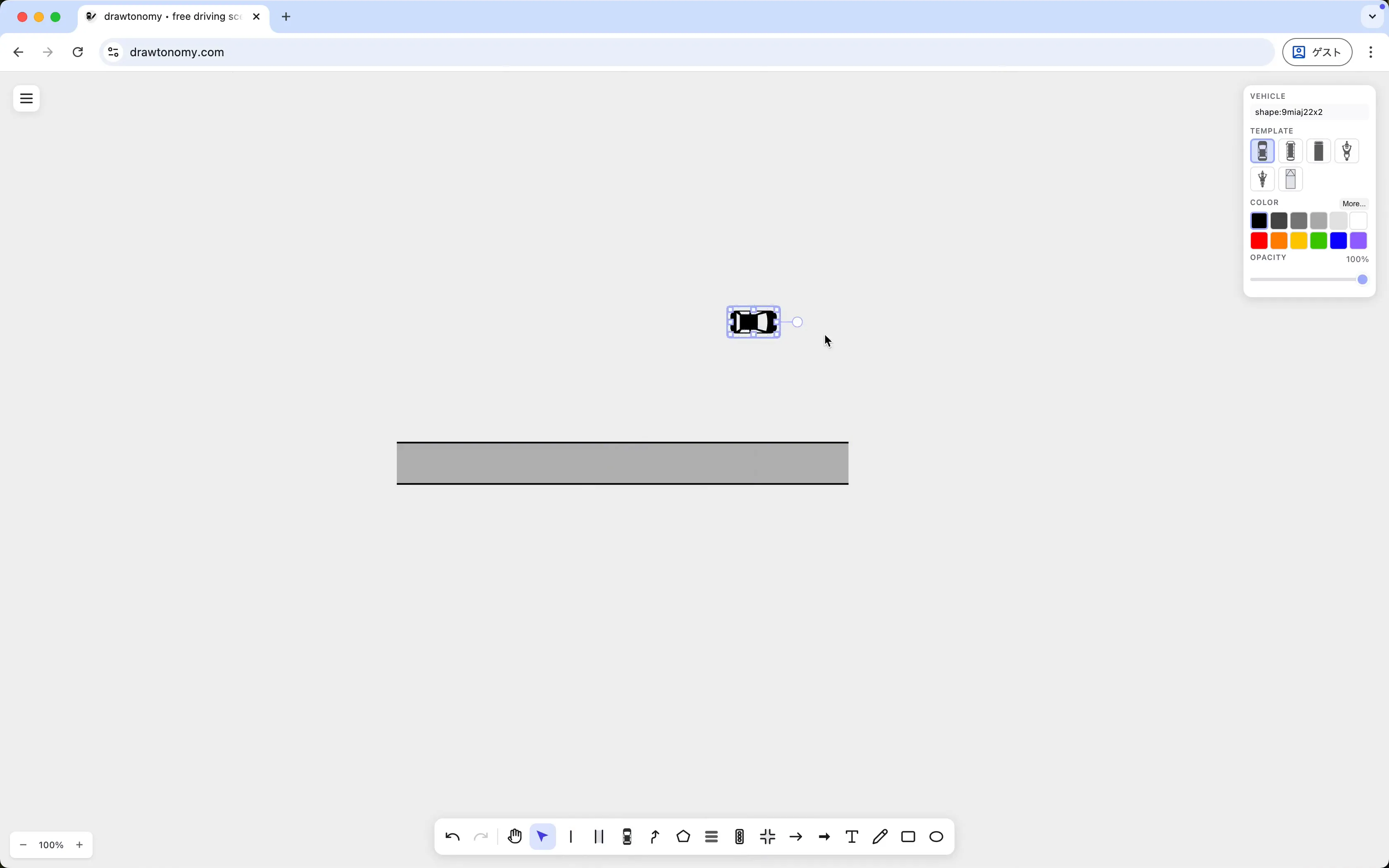
Vehicle snaps to a lane
Section titled “Vehicle snaps to a lane”Switching to the Vehicle tool and dropping a car onto a lane snaps the vehicle onto the lane’s centerline and orients it along the lane direction.
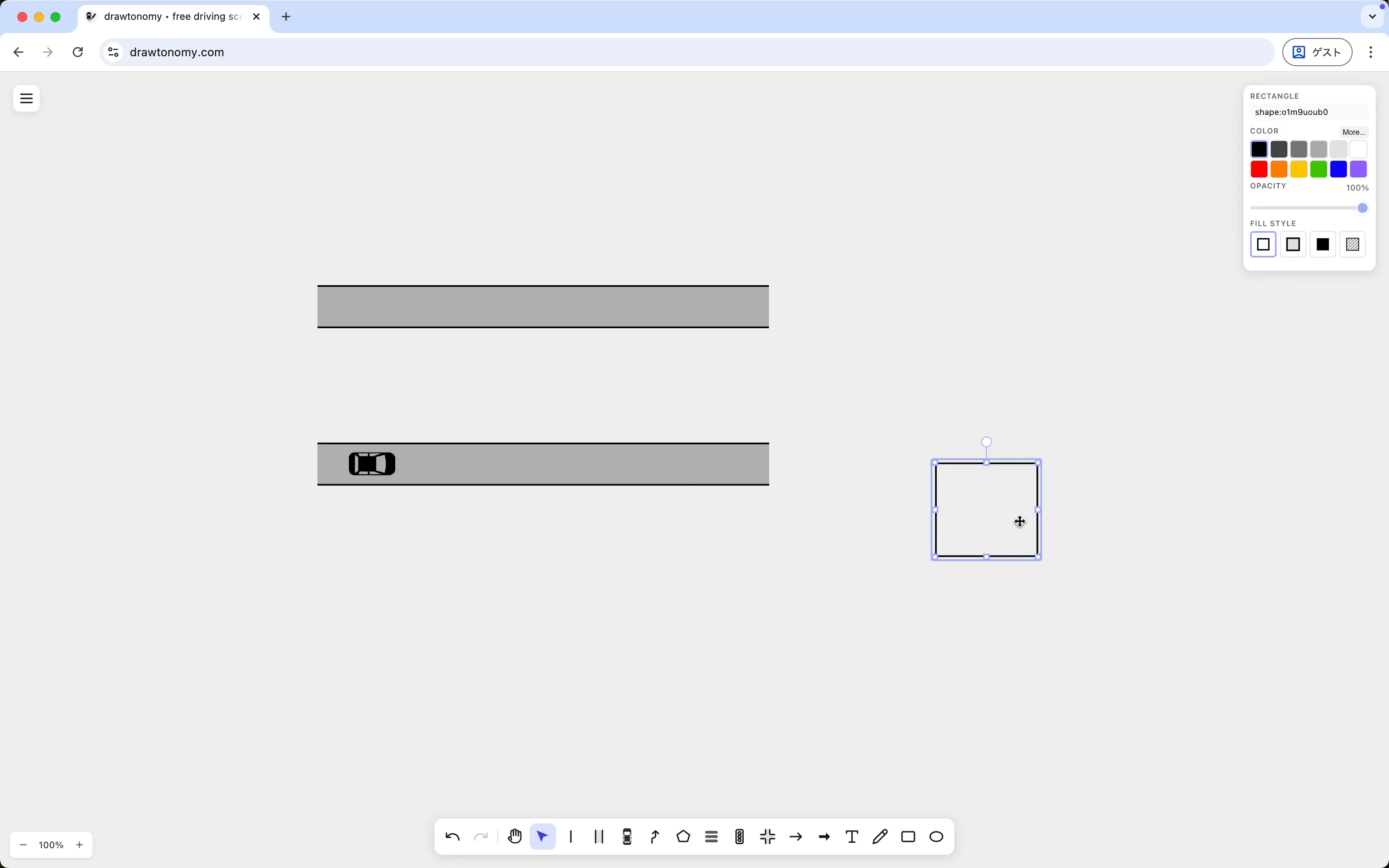
Rectangle snaps to a vehicle / canvas point
Section titled “Rectangle snaps to a vehicle / canvas point”The Rectangle tool gets the same snap behaviour. The dashed indicator shows where the corner is being pulled to.
Disable snap temporarily
Section titled “Disable snap temporarily”Hold Shift while clicking or dragging to bypass snap for that single action. Release Shift to resume snapping.
This is the right move when you want a point near, but not exactly on, an existing target.
See also
Section titled “See also”- Share points between shapes — when you want the new point to be the same as the target, not just coincident.
- Snap & point sharing model