
Equations in slides and blog posts
Getting a typeset equation into a slide or a blog post involves a few moving parts: you typically render the LaTeX somewhere, then drop the result into your slide tool or post as an image. There are many good ways to do this — dedicated LaTeX-to-image services, MathJax in a blog template, screenshots from Overleaf — and which one fits depends on the platform.
drawtonomy is one free, no-install, no-account option in that mix. The Math tool renders LaTeX with KaTeX, lets you recolor and resize, and exports PNG or SVG with a transparent background — all in the browser, without an account.
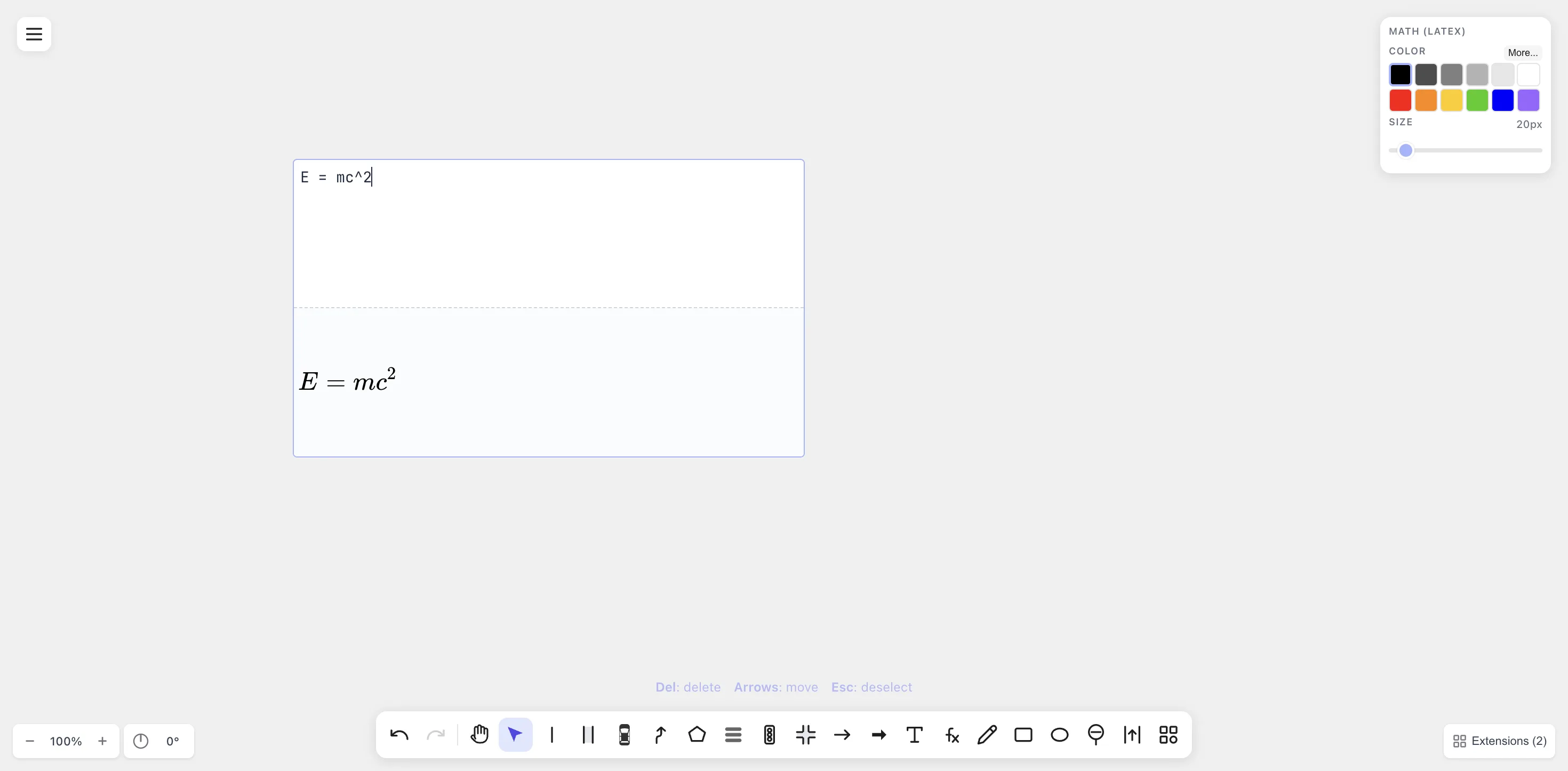
The Math tool in action — LaTeX on top, KaTeX-rendered preview underneath, side panel for colour and size.
A 2-minute workflow
Section titled “A 2-minute workflow”-
Open drawtonomy.com.
-
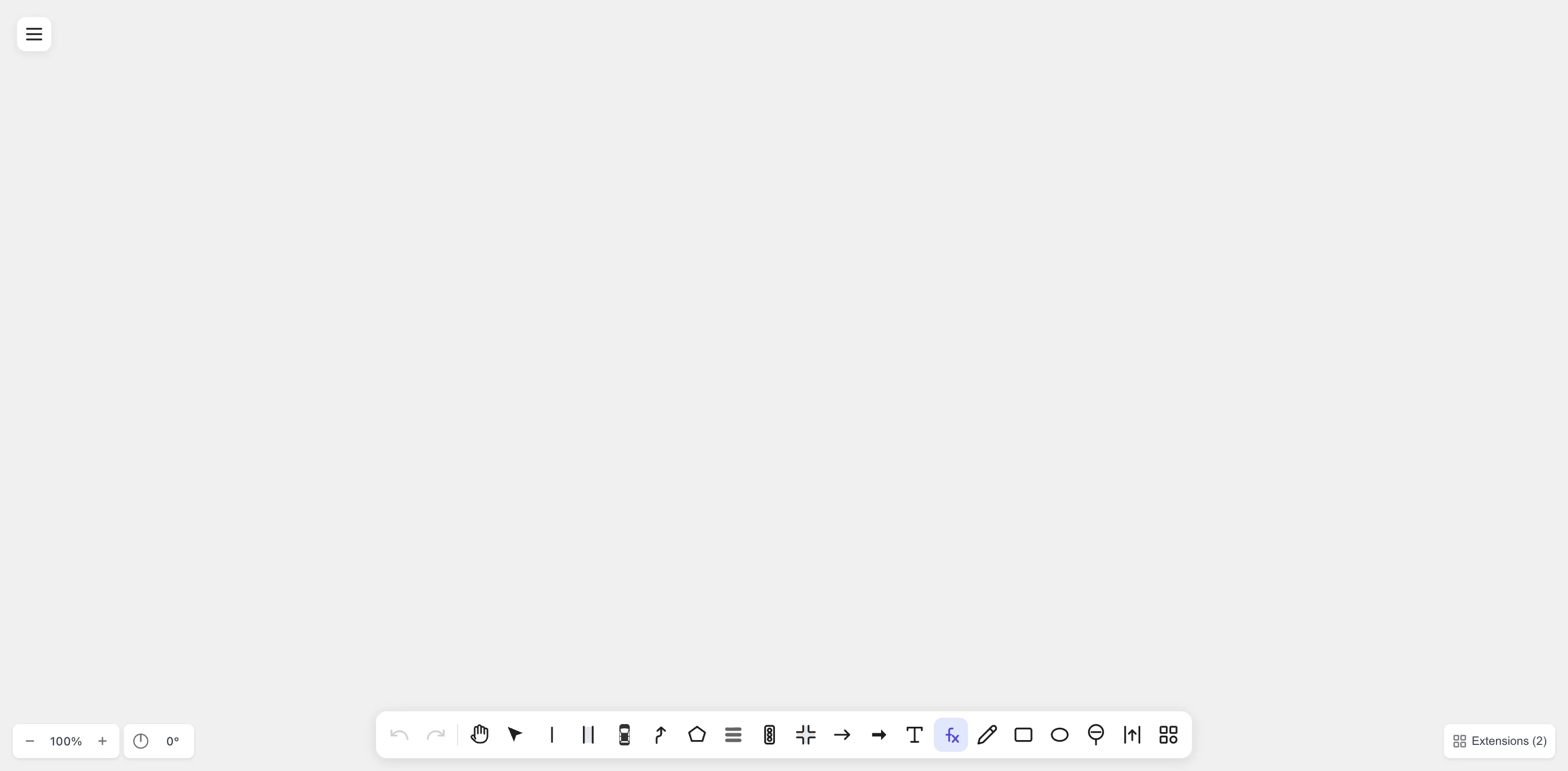
Click the fx icon in the bottom toolbar (or press /).
-
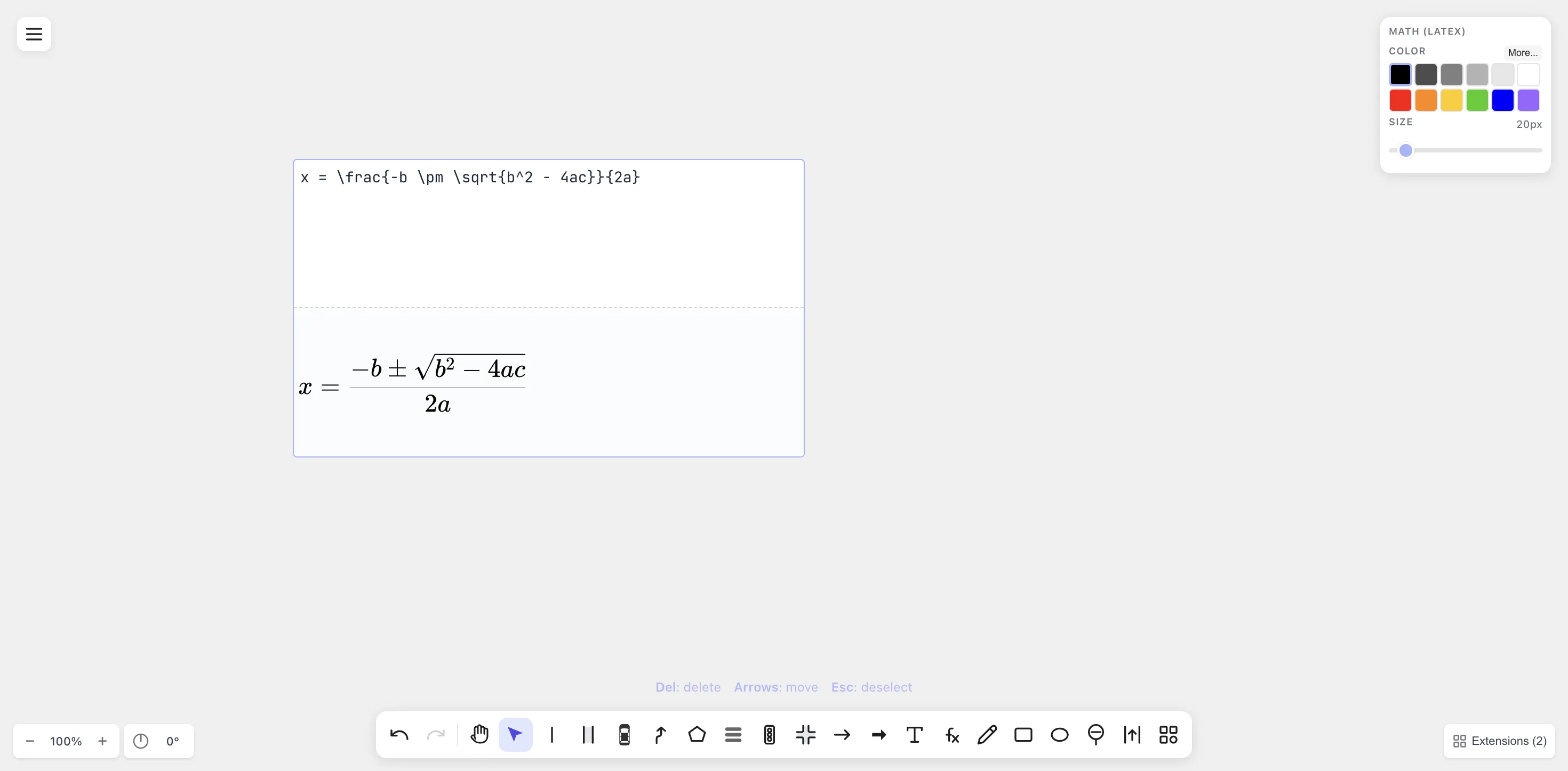
Click on the canvas. Type your LaTeX. Watch it render live below.
-
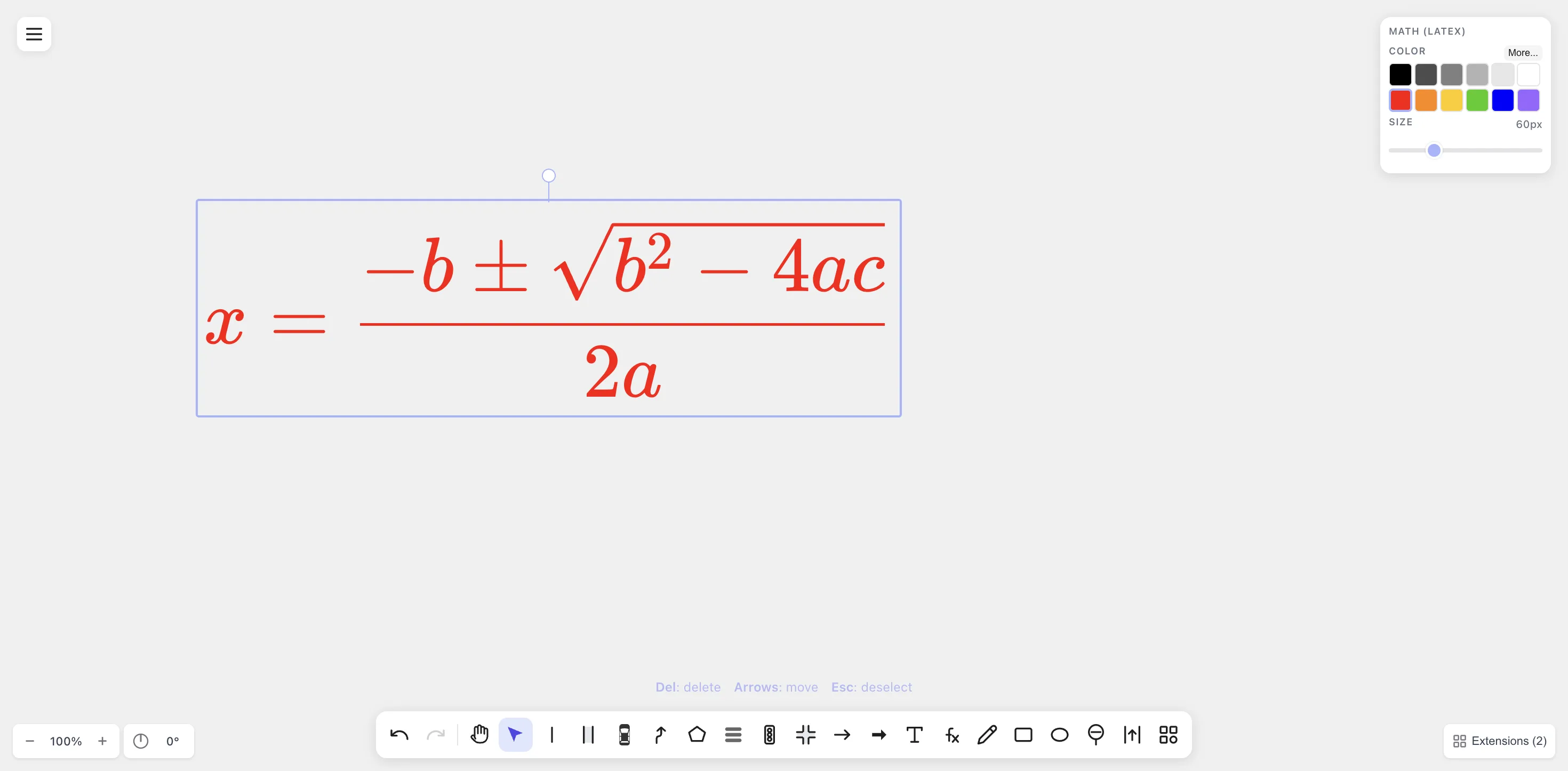
Press Esc. With the equation selected, set color and size in the right-hand panel.
-
Menu → Export → PNG (or SVG). Save the file.
-
Drag the file into your slide or blog post.
Done. No installation, no account, no LaTeX toolchain.
Which format for which target?
Section titled “Which format for which target?”| Target | Best format | Why |
|---|---|---|
| Google Slides | PNG | SVG support is partial; PNG renders identically everywhere. |
| Keynote | SVG (or PNG) | Keynote handles SVG; vector stays sharp when scaled. |
| PowerPoint | PNG (or SVG on Microsoft 365) | Older PowerPoint versions ignore SVG. |
| Notion | PNG | Notion’s image embed is raster-only. |
| Medium | PNG | Medium downscales SVG aggressively. |
| Substack | PNG | Substack only accepts raster uploads in posts. |
| Ghost / WordPress | SVG | Both render SVG natively. |
| Discord / Slack | PNG | Chat apps treat SVG inconsistently. |
When in doubt, PNG with a transparent background works everywhere. SVG is sharper but trickier to integrate.
Recoloring for slide themes
Section titled “Recoloring for slide themes”The default colour is black, which works on white slides. Dark slide deck? Click the Color panel and pick white (or a brand accent). The equation re-renders at the same instant.
Each colour change is its own undo step, so you can experiment freely.
Where drawtonomy fits among the alternatives
Section titled “Where drawtonomy fits among the alternatives”Each of these approaches works well in the right context — picking between them is mostly about how much setup you want and where the output will live.
- LaTeX-to-image web services (e.g. CodeCogs, QuickLaTeX) are fast for one-off equations and produce clean output. Some are great for repeated use; others change features or branding over time, so it’s worth checking the current state for your use.
- MathJax embedded in your blog keeps the equation source in your post, which is ideal when the platform supports it. Hosted platforms vary in how much theme customization they allow.
- Screenshot from Overleaf is a quick path if you already have the LaTeX written; quality scales with the DPI you capture at.
- Hand-typed Unicode (
x² + y² = r²) is perfect when the formula is simple enough to express without fractions or integrals.
drawtonomy renders the equation as vector, exports cleanly, and
the source stays editable in .drawtonomy.svg if you want to
revisit it later.
Beyond a single equation
Section titled “Beyond a single equation”The Math tool lives on a full infinite canvas. So if you’re prepping a slide of, say, “three equations side-by-side with a diagram between them”, you can compose the whole slide in drawtonomy and export a single image — instead of fighting your slide tool’s layout grid.