
Preview OpenSCENARIO and CommonRoad files on GitHub & GitLab — the drawtonomy Chrome extension
Bu içerik henüz dilinizde mevcut değil.
Most OpenSCENARIO and CommonRoad work starts on GitHub or GitLab. Scenarios live in a repository and arrive as pull requests or merge requests, and understanding one usually means cloning the repo, setting up a simulator, and running the file just to see what it does.
drawtonomy for GitHub & GitLab skips all of that. It’s a free
Chrome extension that plays .xosc and CommonRoad files right on the
page — no download, no install, no simulator.
Install from the Chrome Web Store →
What it does
Section titled “What it does”| Where it runs | github.com, gitlab.com, gitlab.lrz.de, gitlab.eclipse.org — file pages and folder listings |
| What it previews | OpenSCENARIO .xosc and CommonRoad scenarios in public repositories/projects |
| What it resolves automatically | The road network and vehicle catalogs the scenario needs |
| What it collects | Nothing — no analytics, no account required |
Install it
Section titled “Install it”Install drawtonomy for GitHub & GitLab from the Chrome Web Store. There’s nothing to configure and no account to create. Visit any supported GitHub or GitLab page with a previewable scenario file and it’s ready to use.
Supported hosts and file formats
Section titled “Supported hosts and file formats”The extension runs on four hosts: github.com, gitlab.com,
gitlab.lrz.de, and gitlab.eclipse.org. The last two are self-hosted
GitLab instances chosen for what they host — gitlab.lrz.de is home to
tum-cps/commonroad-scenarios,
the canonical CommonRoad scenario corpus, and gitlab.eclipse.org hosts
the openPASS project. Other self-hosted GitLab instances and GitHub
Enterprise Server are not covered yet.
It previews two scenario formats:
- OpenSCENARIO —
.xoscfiles, on either host. - CommonRoad — recorded scenarios (a benchmark-ID
.xmlfile, e.g.DEU_Muc-1_1_T-1.xml) and interactive scenarios (.cr.xml). The CommonRoad corpus ongitlab.lrz.decan be paged through folder by folder with the same ◀ ▶ lightbox described below.
Preview a scenario without leaving GitHub
Section titled “Preview a scenario without leaving GitHub”Browse to a public repository that contains OpenSCENARIO files — for
example, esmini/esmini, whose
resources/ folder holds dozens of sample scenarios.
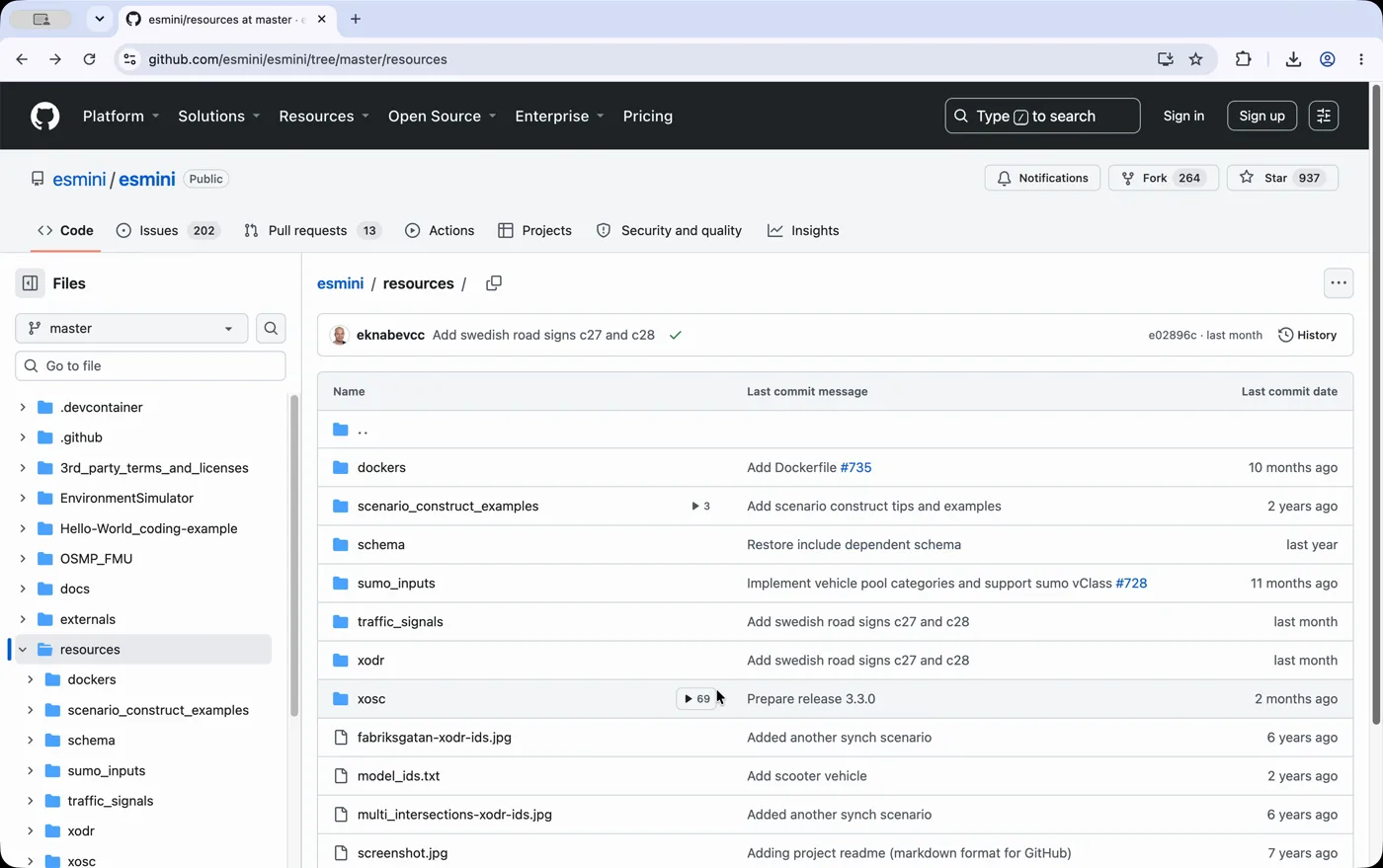
Wherever a .xosc file (or a folder full of them) appears in a GitHub
listing, you’ll see a small ▶ play chip. Folders that contain
scenarios show a count too, so you know how many are inside before you
click.
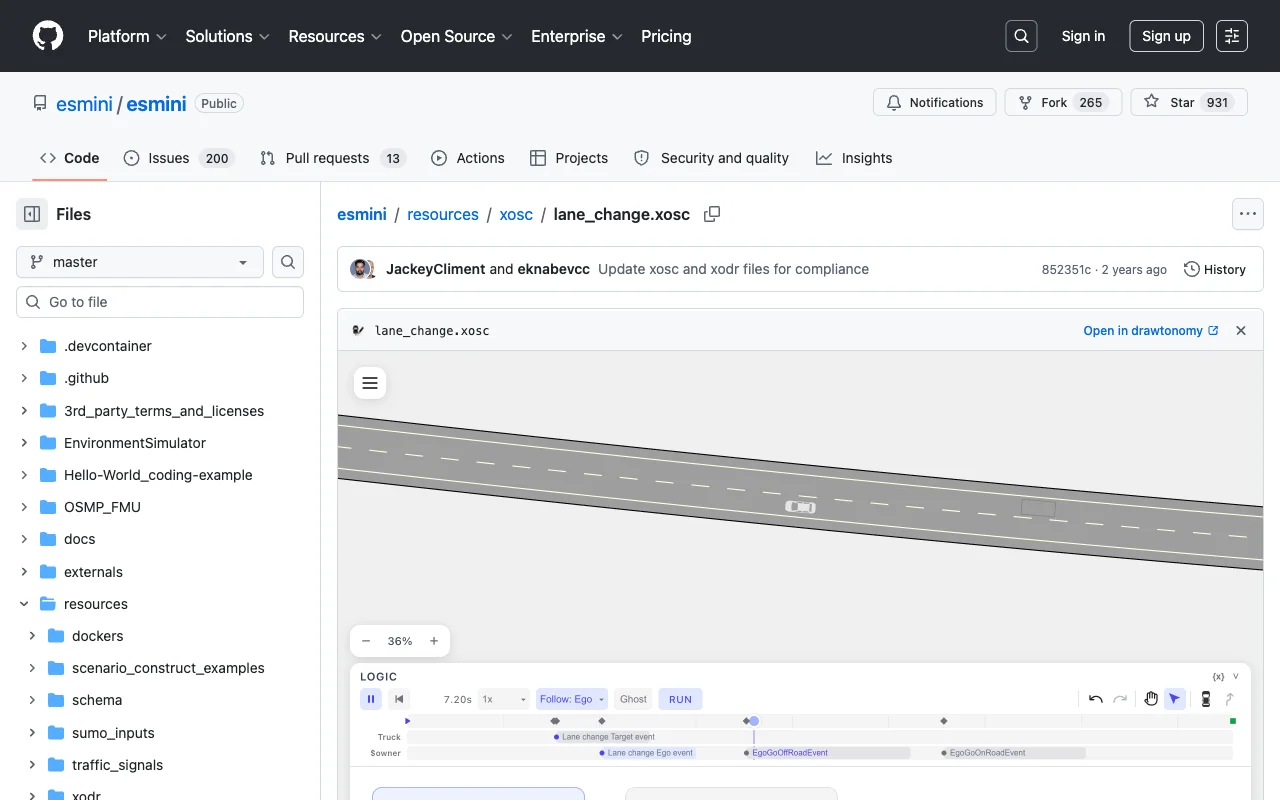
Click a chip and the scenario plays right there — road, vehicles, and the full event timeline — in a popup window over the page.
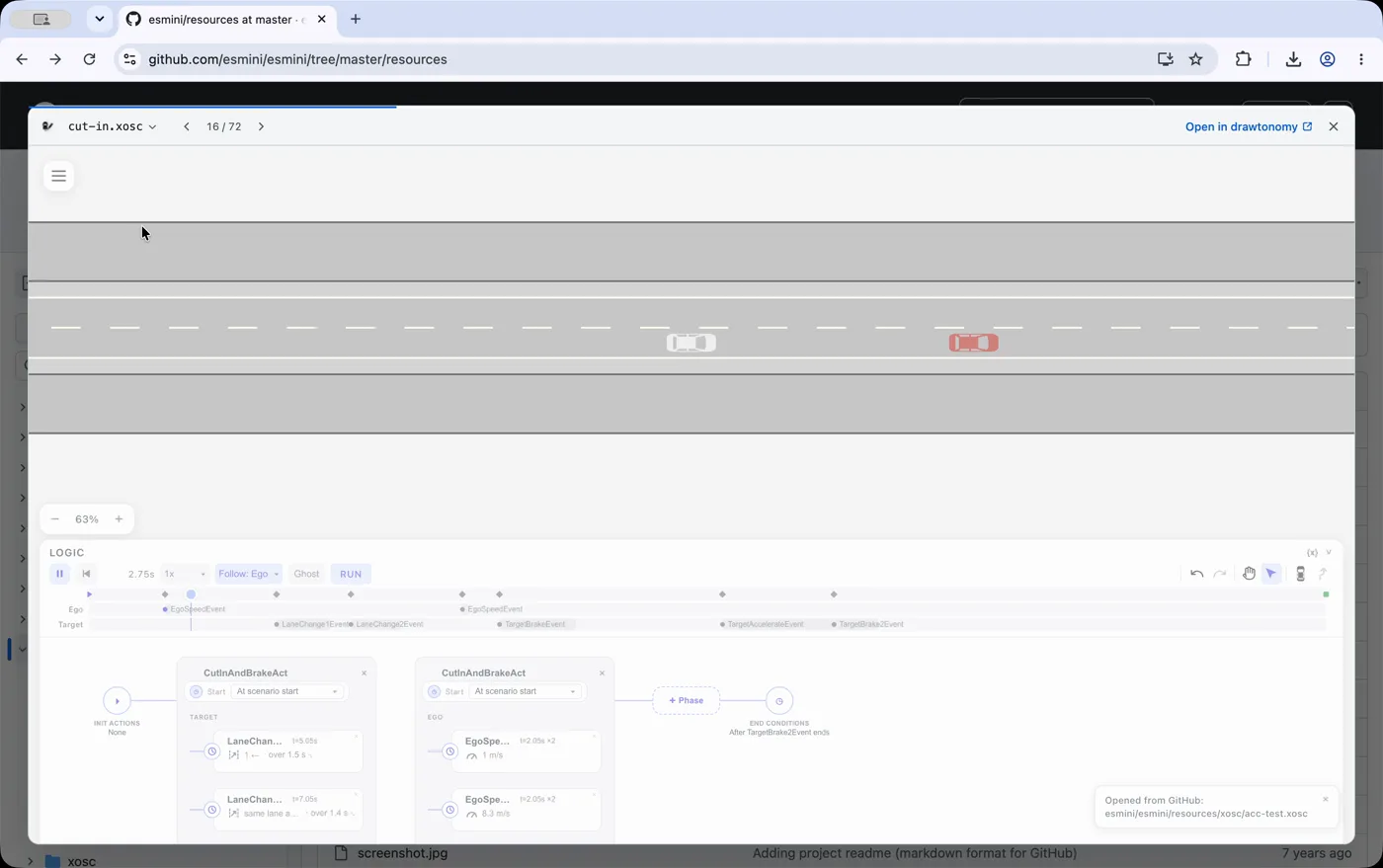
Browsing a whole folder? Use the ◀ ▶ buttons (or the arrow keys) to move to the next scenario without closing the preview. Click the file name at the top to jump straight to any scenario in the folder from a list, rather than paging through one at a time. If a repository stores one scenario per subfolder, opening a folder’s chip walks through every scenario inside it and its subfolders in one sequence.
Opening a .xosc file directly (rather than a folder) shows the same
preview inline on the page, next to GitHub’s Raw / Copy / Download
buttons.
Keyboard shortcuts
Section titled “Keyboard shortcuts”| Key | Action |
|---|---|
| Esc | Close the preview |
| ← / → | Previous / next scenario |
| ↑ ↓ | Move through the jump list |
| Enter | Open the selected scenario |
Open it in the full editor
Section titled “Open it in the full editor”Preview shows you what a scenario does. When you want to change it, click Open in drawtonomy to hand the same scenario to the full editor in a new tab — its road and any catalogs it needs are already resolved, so it’s ready to play immediately.
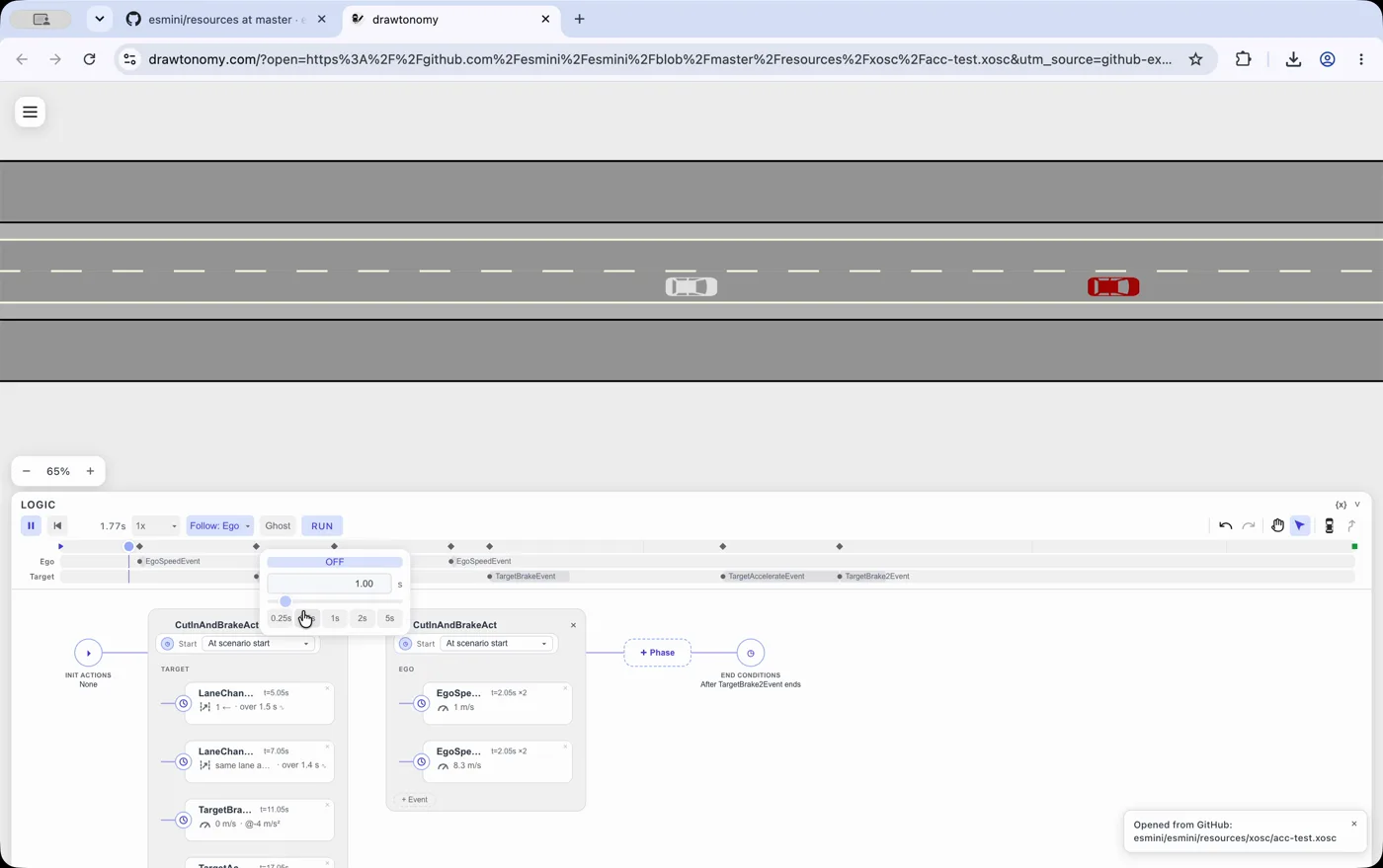
The link you land on is an ordinary shareable URL — anyone can open it, with or without the extension.
Play and follow the action
Section titled “Play and follow the action”Once you’re in the editor, two settings make a scenario much easier to watch:
- Follow: Ego keeps the camera locked onto the ego vehicle, which matters for imported roads that can run for kilometres.
- Ghost leaves a trail of past positions, so a fast manoeuvre like a cut-in reads as one clear picture instead of something you have to catch in the moment.
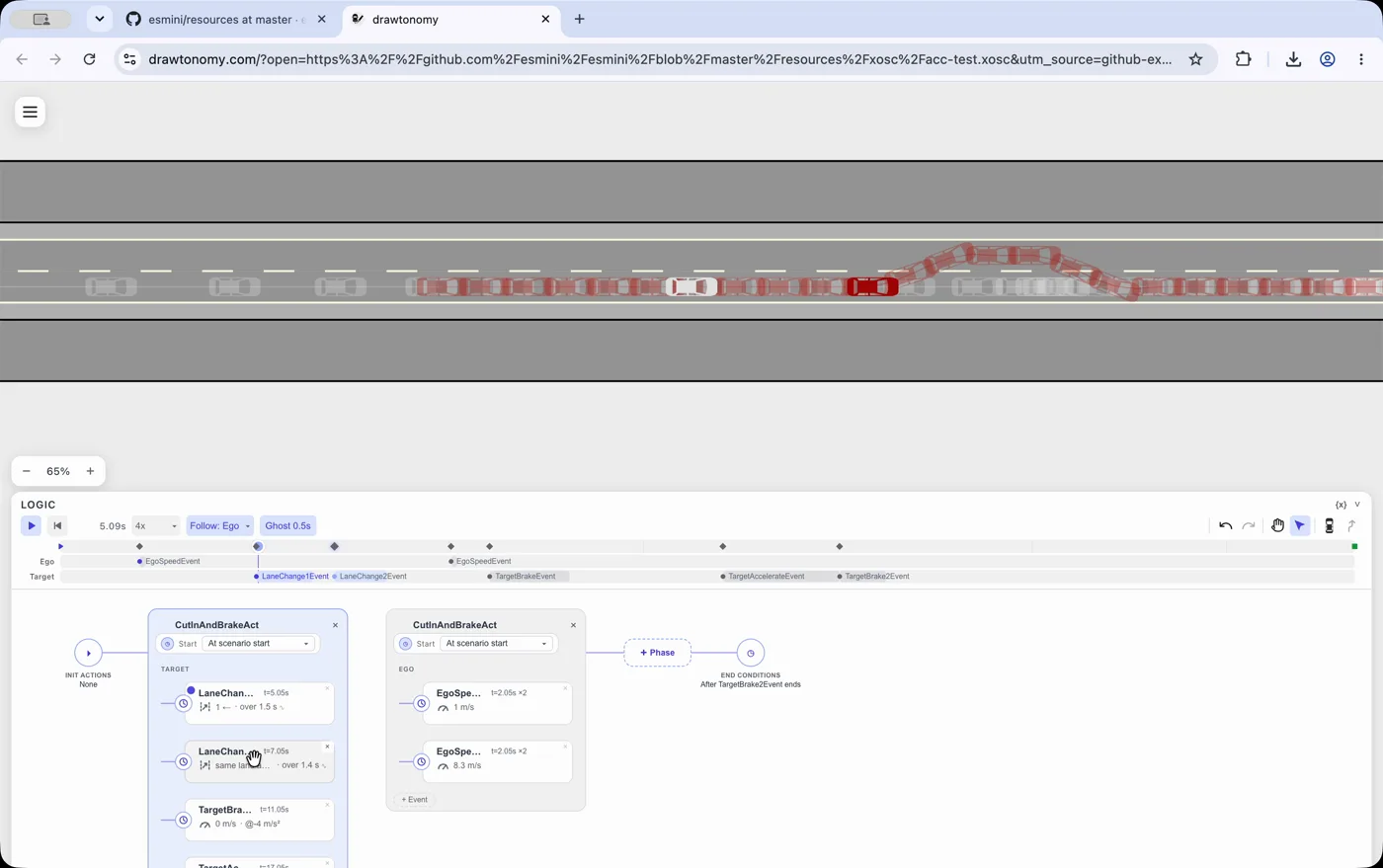
See Playback for the full set of playback controls.
Edit the scenario
Section titled “Edit the scenario”An imported scenario isn’t read-only. Click any event card to open the event editor and change its trigger or action, then replay to see the new behaviour.
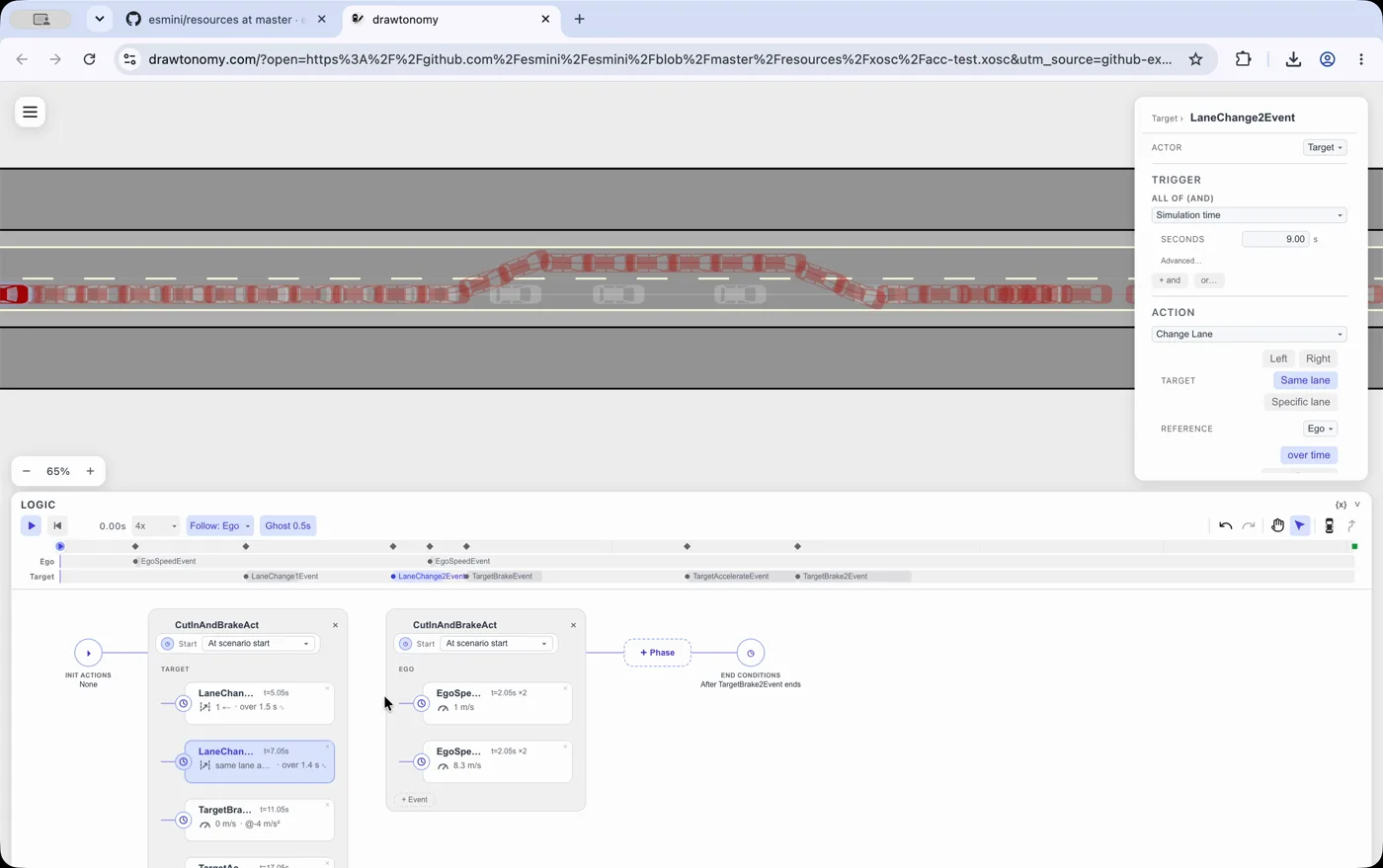
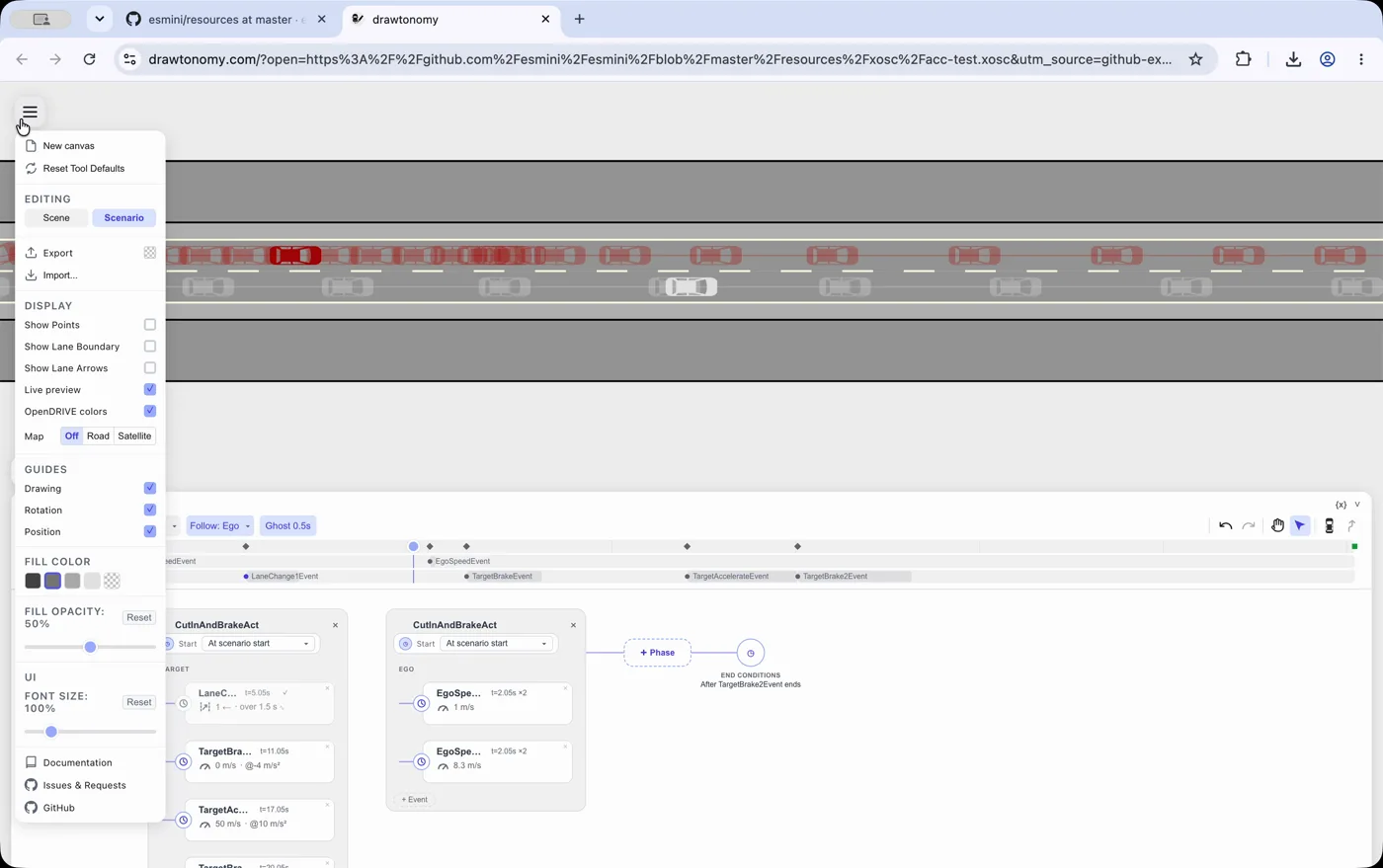
See Actions and Triggers for what each option does.
Export a clip of just the part that matters
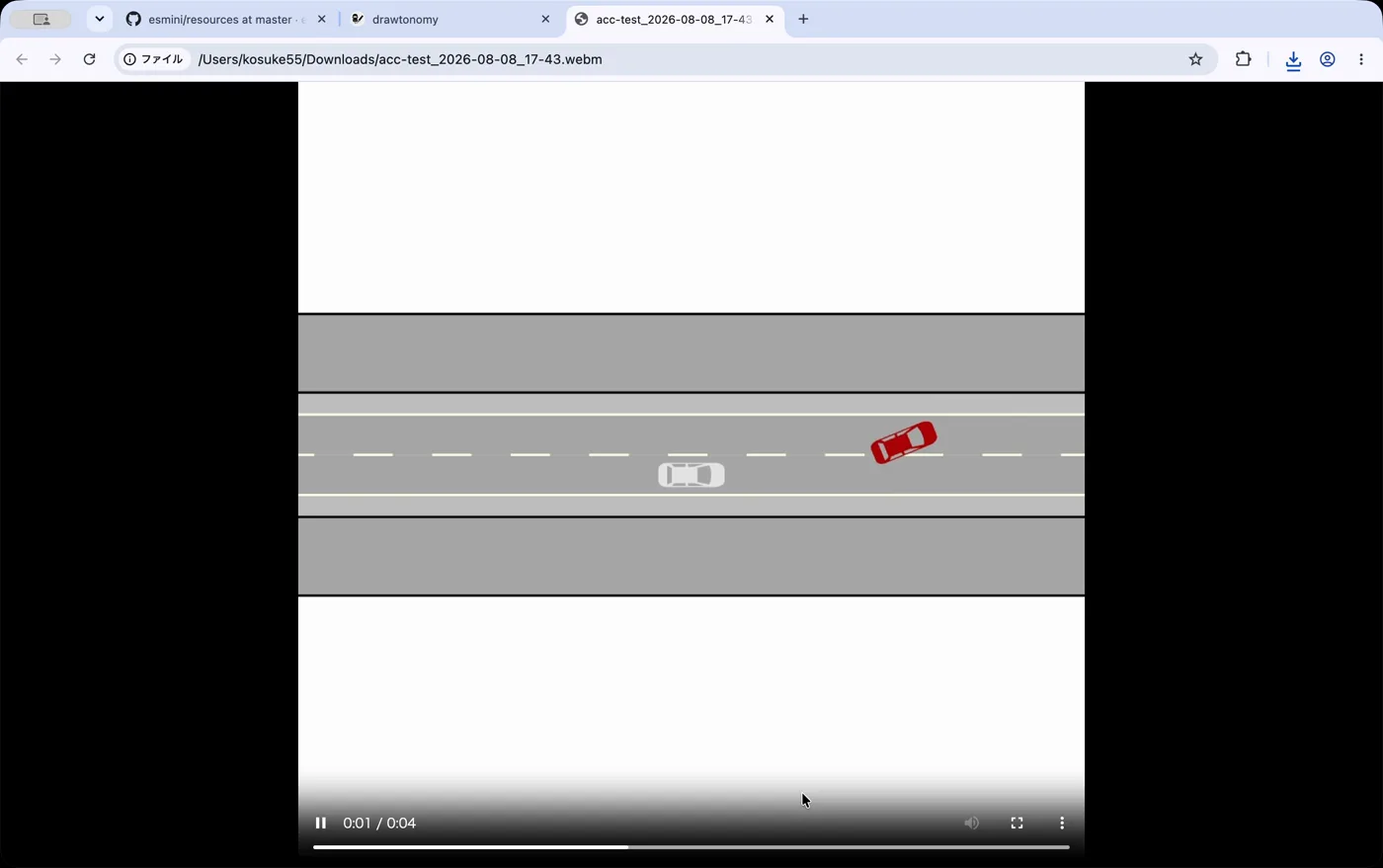
Section titled “Export a clip of just the part that matters”You rarely need the whole run — often just the few seconds where
something interesting happens. Export video records exactly that
as a .webm file, ready to drop into a pull request comment, a
ticket, or a review deck.
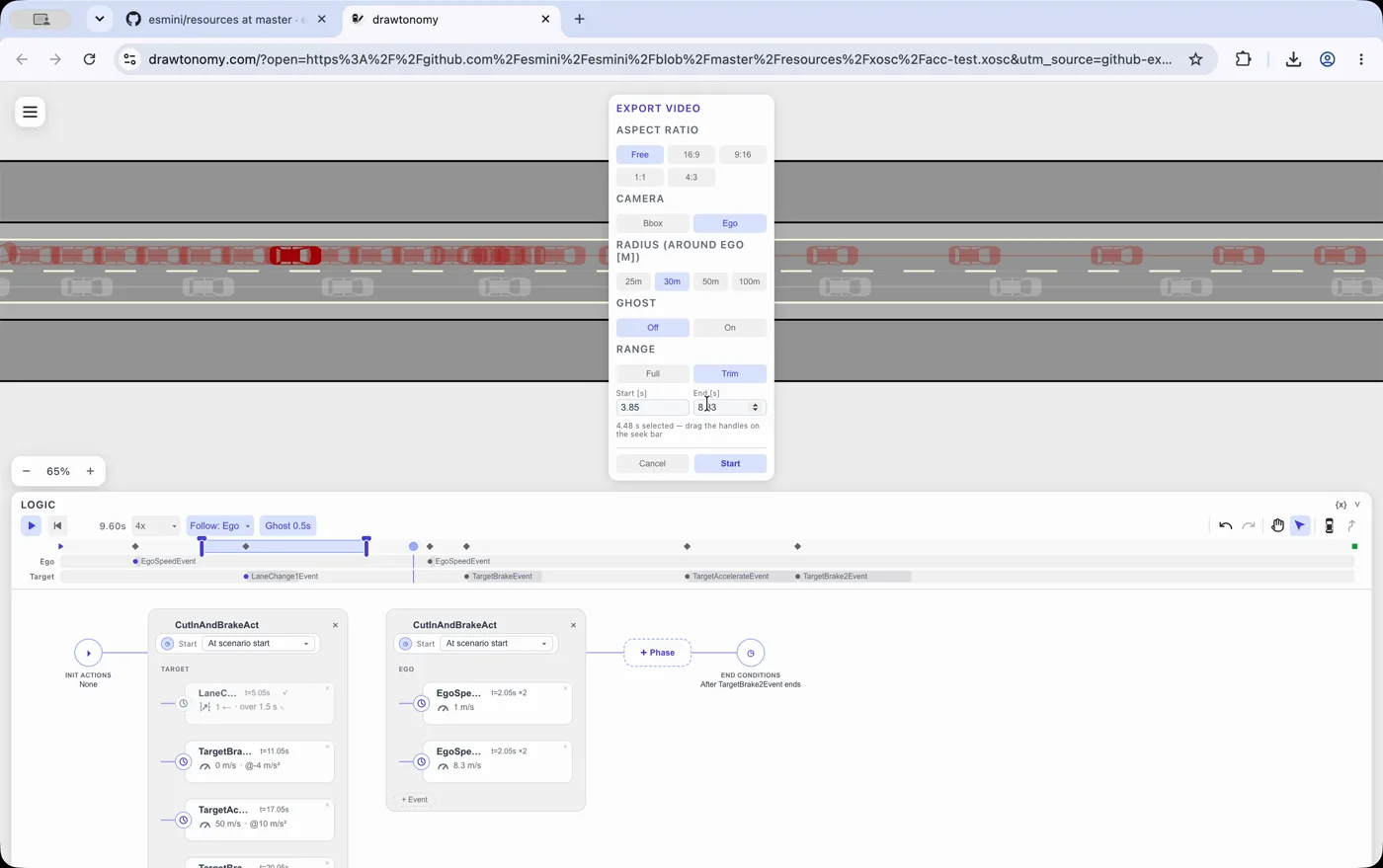
Set Range to Trim, drag the two handles on the seek bar to the moment you want, and click Start. You can also choose the aspect ratio, whether the camera follows the ego vehicle or fits the whole scene, and whether ghost trails are included in the recording.
Privacy
Section titled “Privacy”The extension collects nothing — no analytics, no account, nothing sent to a server of its own. Previewing a file is the same as opening that scenario on drawtonomy.com in a new tab. Full details: Chrome extension privacy policy.
Good to know
Section titled “Good to know”- Public repositories/projects only. Private ones aren’t supported.
.xoscand CommonRoad scenario files — a standalone.xodrroad file isn’t previewable on its own yet.- Only four hosts.
github.com,gitlab.com,gitlab.lrz.de, andgitlab.eclipse.org. Other self-hosted GitLab instances and GitHub Enterprise Server aren’t covered yet. - Scenarios that reference a Windows-style path or a simulator’s
built-in map (rather than a
.xodrin the same repository) can’t resolve their road automatically; drawtonomy will ask you to supply one. - Preview buttons don’t currently appear in pull request “Files changed” diffs — open the file itself instead.
You can change the app URL the preview loads from, and turn on auto-preview, from the extension’s options page (toolbar popup → Options).
Without the extension
Section titled “Without the extension”Everything the extension does, you can also do with a link. Append a
GitHub file URL to ?open=:
https://drawtonomy.com/?open=https://github.com/esmini/esmini/blob/master/resources/xosc/cut-in.xoscOpen the esmini cut-in scenario →
That link works for anyone, extension or not — useful when sharing a
scenario with a teammate. See Open and play a
.xosc.
The same ?open= also takes a CommonRoad scenario .xml; add
&solution= and &verdict= to open the planner’s solution and the
checker’s verdict with it. See CommonRoad.
See also
Section titled “See also”- Open and play a .xosc — every route into the scenario editor, including drag and drop.
- Simulate an OpenSCENARIO file in the browser — the player in depth.
- Playback — transport, follow camera, ghosts, and video export.
- What is esmini?