
Playback — run, seek, follow, and record a scenario
תוכן זה אינו זמין עדיין בשפה שלך.
Everything you need to run a scenario sits in one row along the top of the LOGIC card. The run itself is executed by esmini compiled to WebAssembly, in your browser.
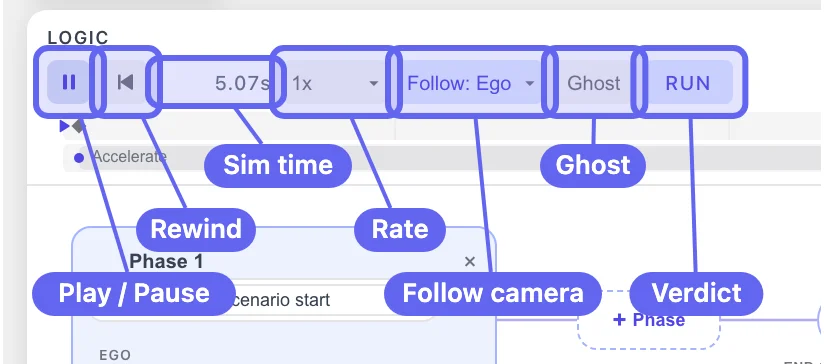
The transport row
Section titled “The transport row”| Control | What it does |
|---|---|
| ▶ / ❚❚ | Starts or pauses the run. Shows a loading state while the runtime warms up. |
| ⏮ | Reset to start. |
| 0.00s | Simulation time. Counts up during the run. |
| 1x | Playback rate — 0.25x, 0.5x, 1x, 2x, 4x. |
| Follow: Off | Camera target — Off, or any entity in the scenario. |
| Ghost | Motion trails. Opens a popover with OFF, 0.25s, 0.5s, 1s, 2s, 5s. |
| PASS / FAIL / RUN / IDLE | The verdict badge. See End and fail conditions. |
The card itself has two more controls: {x} opens the parameters
and variables panel, and ˅ collapses the card to give the canvas
the full screen. The top edge of the card is a resize handle
(Resize Logic pane) — drag it up when the phase graph needs more
room.
If there is no road, the transport row says so:
No road — draw a road or import .xodr, with both phrases as links.
The timeline
Section titled “The timeline”Below the transport row is the timeline. Before the first run it shows
Run ▶ to see the timeline.

Once a run has started it fills in:
- A block per actor, spanning the time that actor is doing something.
- A marker where each event starts.
- A playhead at the current simulation time.
Click or drag anywhere on the timeline to seek. Seeking is exact — every pose comes from the simulation, so the frame you land on has a defined state for every entity. That is what makes playback usable for review: pause on the exact moment of a cut-in and inspect the geometry instead of guessing while the run continues.
The ruler is not labelled with numbers, so read the time from the
0.00s readout after you seek.
Follow camera
Section titled “Follow camera”
Follow: Off is the default, and the camera stays where you left
it. The dropdown lists Follow: Off plus one entry per entity —
Follow: Ego, Follow: OverTaker, and so on.
Turn it on for anything longer than a screen. Imported road networks are often kilometres long; without a follow target the actors drive straight out of view within a few seconds and the run looks broken when it is not.
Ghost trails
Section titled “Ghost trails”
Ghost stamps the actor’s outline onto the canvas at a fixed
interval, leaving a visible motion trail behind it. Pick the interval
from the popover: OFF, 0.25s, 0.5s, 1s, 2s, 5s.
Because the stamps are evenly spaced in time, their spacing on the canvas reads as speed — stamps bunching up mean braking, stamps spreading out mean acceleration. It is the fastest way to see a speed profile without reading numbers.
Ghosts also bake into image and SVG exports, so a figure you save for a slide shows the trajectory rather than a single frame. See Path and Footprint.
Telemetry plot
Section titled “Telemetry plot”Plot in the transport row opens a time-series lane under the timeline, sharing the timeline’s x-axis — the seek head runs through both, and clicking or dragging inside the plot seeks the run.

Pick a quantity (speed, acceleration, jerk, yaw rate, distance, gap, or TTC), hover for the values at an instant, or export the whole run as a CSV. See Telemetry for the full reference.
Verdict badge
Section titled “Verdict badge”
| Badge | Meaning |
|---|---|
IDLE | Not running. |
RUN | Running, no fail condition triggered yet. |
PASS | Reached the end condition with no fail condition triggered. |
FAIL | A fail condition triggered; the run stopped there. |
When a fail condition triggers, the badge turns to a red FAIL and a
matching × marker appears on the timeline at the moment it fired:

There is no button labelled “Run” — the ▶ button starts the scenario,
and RUN is the badge that appears while it is going.
Recording a run
Section titled “Recording a run”Hamburger menu → Export → Video (.webm)… records the run to a video file. The export runs in your browser, so nothing is uploaded. Aspect ratio and camera options are covered in Simulate an OpenSCENARIO file in the browser.
The rest of the Export submenu is useful next to it:
OpenSCENARIO (.xosc)… for the scenario, OpenDRIVE (.xodr) for the
road, image formats for figures, and Copy URL for a shareable
link.
Exporting the scenario as .xosc
Section titled “Exporting the scenario as .xosc”Export → OpenSCENARIO (.xosc)… (Scenario mode only) does not
download straight away — it opens a small dialog first:
| Field | Choices |
|---|---|
| VERSION | The OpenSCENARIO schema version — 1.0, 1.1, or 1.2 (default 1.1). 1.3 is shown but greyed out (“coming soon”), not yet selectable. |
| INCLUDE | .xosc on its own, or .xosc + .xodr together (the road plus the storyboard). |
| TARGET SIMULATOR | esmini or Generic. esmini tunes the output for the esmini runtime. |
| FILE NAME | The base name for the file(s). |
Pick the version and bundling you need, then confirm to download. The
OpenDRIVE (.xodr) item next to it, by contrast, writes the road
immediately with no dialog (default name Untitled-<date>-<time>.xodr).
For the full round-trip into esmini, see
Export to OpenDRIVE / OpenSCENARIO / esmini.
Recording only part of the run
Section titled “Recording only part of the run”RANGE decides how much of the run reaches the file. It opens on Full — the whole run, exactly as before. Switch it to Trim to record a slice:
-
Open Export → Video (.webm)…, then click Trim.
-
Two handles appear on the seek bar, one per end of the range. What sits between them is what gets recorded; the rest of the bar dims.

-
Drag either handle along the bar, or type the seconds into Start [s] and End [s]. The dialog keeps the count under them —
5 s selected.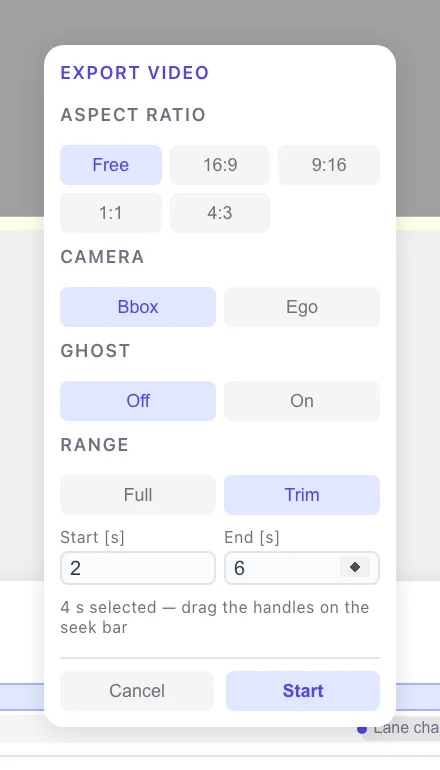
-
Click Start. The file lasts exactly as long as the range you picked.
The playhead stays live while the handles are up, so you can click inside the range and check a frame before you record it.
The range is deliberately not remembered: every time you open Video (.webm)… it starts at Full again. Aspect ratio, camera and ghost are a house style and do persist, but a range is tied to one scenario — every run has a different length, so last time’s seconds would land in the wrong place here.
If nothing moves
Section titled “If nothing moves”| Symptom | Likely cause |
|---|---|
| The actor never moves | No event has triggered yet — check the trigger’s SECONDS, or that its phase’s Start condition is satisfied. |
| The actor drives, then stops for good | It reached the end of the road. Extend the road or import a longer .xodr. |
| The actor moves off-screen immediately | The follow camera is Off. |
| A Change Lane event fires but nothing moves sideways | TARGET is still Same lane with the actor referencing itself. See Actions. |
| Two events happen at once | Both triggers are still at 0.00 s. |
See also
Section titled “See also”- Telemetry — the full reference for the Plot lane and the CSV export.
- End and fail conditions
- 3D view
- Open and play an existing .xosc
- Simulate an OpenSCENARIO file in the browser
- Path and Footprint