
Actions reference — all 35 scenario actions
本頁內容尚未翻譯。
An event’s ACTION is what happens when its trigger fires. drawtonomy offers 35 actions, each mapping to an ASAM OpenSCENARIO 1.x element.
The dropdown shows four of them under COMMON. The other 31 sit behind a collapsed More actions… row — that row looks like a group heading, but it opens when you click it. The dropdown lists them in menu order; the tables below instead group them by what they do, so you can look one up by intent.
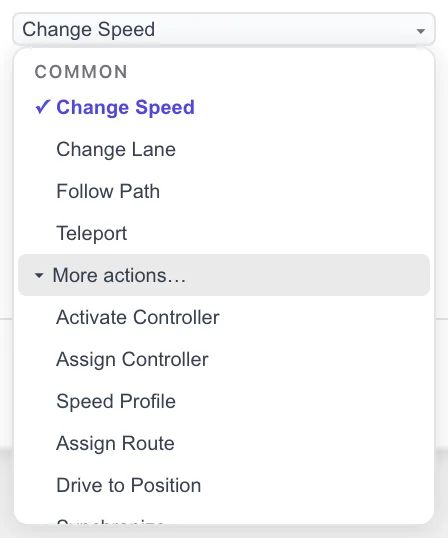
An event can hold several actions. + Action in the event editor adds another; they all start when the trigger fires.
COMMON
Section titled “COMMON”| UI label | OpenSCENARIO | What it does |
|---|---|---|
| Change Speed | SpeedAction | Brings the actor to a target speed, absolute or relative to another actor. |
| Change Lane | LaneChangeAction | Moves the actor sideways into another lane. |
| Follow Path | FollowTrajectoryAction | Makes the actor follow a trajectory you drew with the Path tool. |
| Teleport | TeleportAction | Places the actor at a position instantly, with no motion in between. |
More actions…
Section titled “More actions…”The remaining 31 actions live behind the More actions… row. They are grouped here by intent; in the dropdown itself they appear in a single menu-ordered list.
Longitudinal
Section titled “Longitudinal”Speed over time and forward gaps.
| UI label | OpenSCENARIO | What it does |
|---|---|---|
| Speed Profile | SpeedProfileAction | Follows a series of speed / time pairs instead of a single target speed. |
| Keep Longitudinal Distance | LongitudinalDistanceAction | Holds a gap ahead of or behind a reference actor. |
| Synchronize | SynchronizeAction | Times the actor’s arrival at a position to coincide with another actor’s arrival at its own. |
Lateral
Section titled “Lateral”Sideways position and sideways gaps.
| UI label | OpenSCENARIO | What it does |
|---|---|---|
| Lateral Offset | LaneOffsetAction | Shifts the actor sideways within its lane without changing lane. |
| Keep Lateral Distance | LateralDistanceAction | Holds a sideways gap from a reference actor. |
Position & routing
Section titled “Position & routing”Where the actor is, and the path it takes across the road network.
| UI label | OpenSCENARIO | What it does |
|---|---|---|
| Assign Route | AssignRouteAction | Gives the actor a route made of waypoints to follow. |
| Drive to Position | AcquirePositionAction | Sends the actor to a position, routing over the road network. |
Controllers
Section titled “Controllers”Attach a controller to an actor and steer what it governs.
| UI label | OpenSCENARIO | What it does |
|---|---|---|
| Assign Controller | AssignControllerAction | Attaches a controller to the actor. |
| Activate Controller | ActivateControllerAction | Turns an assigned controller’s lateral or longitudinal domain on or off. |
| Override Controller Value | OverrideControllerValueAction | Forces throttle, brake, steering, gear, or similar to a value. |
Appearance & visibility
Section titled “Appearance & visibility”How the actor looks and what it is made of.
| UI label | OpenSCENARIO | What it does |
|---|---|---|
| Visibility | VisibilityAction | Controls whether the actor is visible to graphics, sensors, or traffic. |
| Light State | LightStateAction | Switches vehicle lights — indicators, brake lights, head lights. |
| Animation | AnimationAction | Drives an animation such as a door, the trunk, or a wiper. |
| Connect Trailer | ConnectTrailerAction | Couples a trailer entity to the actor. |
| Disconnect Trailer | DisconnectTrailerAction | Uncouples the actor’s trailer. |
Traffic & entities
Section titled “Traffic & entities”Spawn, remove, and manage the actors and ambient traffic in the run.
| UI label | OpenSCENARIO | What it does |
|---|---|---|
| Add Entity | AddEntityAction | Spawns an entity into the running scenario. |
| Delete Entity | DeleteEntityAction | Removes an entity from the running scenario. |
| Traffic Source | TrafficSourceAction | Continuously spawns ambient traffic at a position. |
| Traffic Sink | TrafficSinkAction | Removes ambient traffic that reaches a position. |
| Traffic Swarm | TrafficSwarmAction | Maintains a swarm of ambient traffic around a central actor. |
| Traffic Stop | TrafficStopAction | Stops a previously started traffic source, sink, or swarm. |
| Traffic Area | TrafficAreaAction | Populates an area or set of roads with ambient traffic. |
Infrastructure & environment
Section titled “Infrastructure & environment”The world the actors drive in — signals and conditions.
| UI label | OpenSCENARIO | What it does |
|---|---|---|
| Traffic Signal State | TrafficSignalStateAction | Forces a traffic signal into a given state. |
| Traffic Signal Controller | TrafficSignalControllerAction | Switches a signal controller to a named phase. |
| Environment | EnvironmentAction | Sets weather, time of day, and road conditions. |
Parameters, variables & sync
Section titled “Parameters, variables & sync”Scenario-level values, and the hooks that report outcomes.
| UI label | OpenSCENARIO | What it does |
|---|---|---|
| Set Parameter | ParameterSetAction | Assigns a value to a scenario parameter. |
| Modify Parameter | ParameterModifyAction | Applies an arithmetic change to a parameter. |
| Set Variable | VariableSetAction | Assigns a value to a scenario variable. |
| Modify Variable | VariableModifyAction | Applies an arithmetic change to a variable. |
| Set Monitor | SetMonitorAction | Sets a named monitor value, used to report scenario outcomes. |
| Custom Command | CustomCommandAction | Passes a simulator-specific command straight through. |
Dynamics: the shape of an action
Section titled “Dynamics: the shape of an action”Most motion actions share two settings.
DYNAMICS decides what the accompanying VALUE measures:
| DYNAMICS | VALUE is | Meaning |
|---|---|---|
over time | seconds | Complete the change in this much time. |
over distance | metres | Complete it over this much travelled distance. |
at rate | m/s² | Change at this rate until the target is reached. |
PROFILE, in the ADVANCED section, decides the interpolation
shape — Linear, Cubic, Sinusoidal, or Step. It maps to
OpenSCENARIO’s dynamicsShape.
Defaults differ per action. Change Speed starts at over time
2.00 s; Change Lane starts at over distance 30.00 m with a
Sinusoidal profile.
Change Speed
Section titled “Change Speed”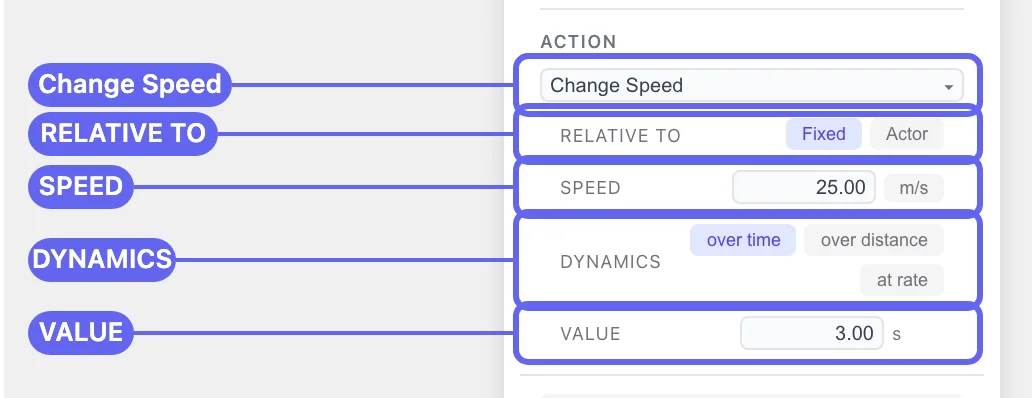
| Field | Values |
|---|---|
| RELATIVE TO | Fixed or Actor |
| SPEED | a number, in m/s |
| DYNAMICS | over time / over distance / at rate |
| VALUE | a number, in s, m, or m/s² depending on DYNAMICS |
With RELATIVE TO set to Actor, two more fields appear:
- REFERENCE — the actor to measure against.
- MODE —
× factor(a multiple of the reference speed) or+ delta(an offset from it).
Fixed emits an absolute SpeedAction target; Actor emits a
relative one.
Speeds are in metres per second throughout the editor. 8.33 m/s is
30 km/h; 27.78 m/s is 100 km/h.
Change Lane
Section titled “Change Lane”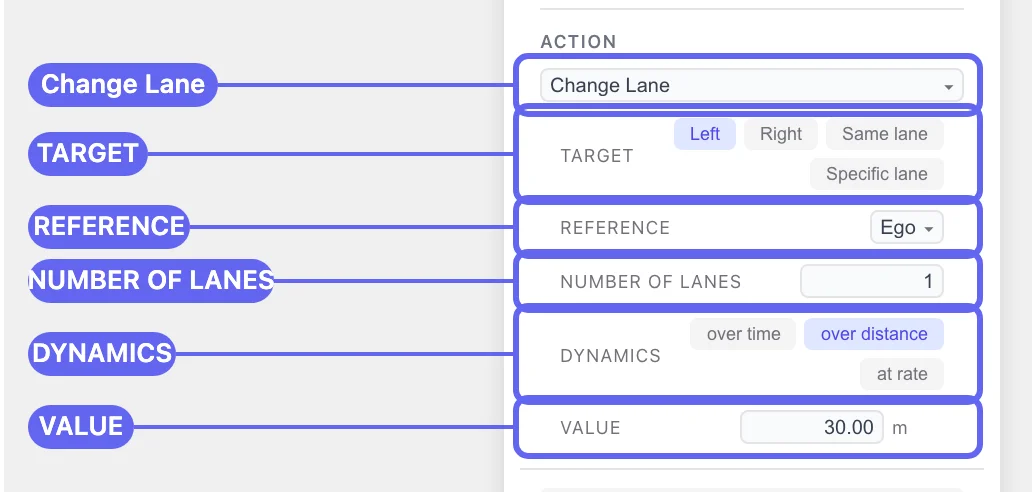
| Field | Values |
|---|---|
| TARGET | Left / Right / Same lane / Specific lane |
| REFERENCE | the actor whose lane the target is measured from |
| NUMBER OF LANES | a number — shown only for Left and Right |
| DYNAMICS | over time / over distance / at rate |
| VALUE | a number, in m by default |
TARGET and REFERENCE work together, and that pairing is the part worth understanding:
| TARGET | REFERENCE | Result |
|---|---|---|
Right, 1 lane | the actor itself | Move one lane to the actor’s own right. A plain lane change. |
Same lane | another actor | Move into whatever lane that actor is in. This is how a cut-in is written. |
Same lane | the actor itself | Nothing. The editor warns you. |
Specific lane | — | Move to an absolute lane ID from the OpenDRIVE road. |
When you switch an action to Change Lane, it starts on Same lane
with the actor referencing itself, so a warning appears immediately:
⚠ Change Lane target is the actor’s own current lane — no lateral movement will occur.
That is the default state, not a mistake you made. Set TARGET to
Left or Right — which also reveals NUMBER OF LANES — or point
REFERENCE at a different actor.
See also
Section titled “See also”- Triggers reference — when actions fire.
- Phases and events — PROFILE, PRIORITY, REPEAT, and the rest of ADVANCED.
- Build your first scenario — Change Speed and Change Lane in context.
- RoadRunner and OpenSCENARIO terms