
Open and play an existing .xosc
本頁內容尚未翻譯。
drawtonomy reads OpenSCENARIO 1.x .xosc files and runs them in the
browser on esmini compiled to WebAssembly. The
imported scenario is not read-only — the acts, events, actions, and
triggers land in the same editor you would use to author from scratch.
You need both files
Section titled “You need both files”A .xosc describes what the actors do. It does not contain the
road — it references an OpenDRIVE .xodr in its RoadNetwork element.
Without that road, entities have nowhere to be placed, so drawtonomy
asks for it before importing.
Have both files at hand before you start. If your .xosc came from
the esmini repository, the
matching .xodr sits in resources/xodr/ next to
resources/xosc/.
Three ways to open a scenario
Section titled “Three ways to open a scenario”Drag and drop
Section titled “Drag and drop”Select the .xosc and the .xodr in your file manager and drop
them onto the canvas together. This is the shortest path — drawtonomy
pairs them itself and imports in one step: the road loads, the actors
land on it, and the LOGIC card fills in, all without a second prompt.
Pairing keys off the road the .xosc names in its RoadNetwork
element. If the .xodr you dropped isn’t the one referenced — or you
dropped the .xosc on its own — drawtonomy can’t complete the pair and
falls back to the OPENDRIVE MAP REFERENCED banner
so you can point it at the right road file.
The Import menu
Section titled “The Import menu”Hamburger menu → Import…, then pick the .xosc.
Because the file dialog only takes one file, drawtonomy then shows a banner at the top of the screen:
OPENDRIVE MAP REFERENCED
cut-in.xosc→../xodr/e6mini.xodr
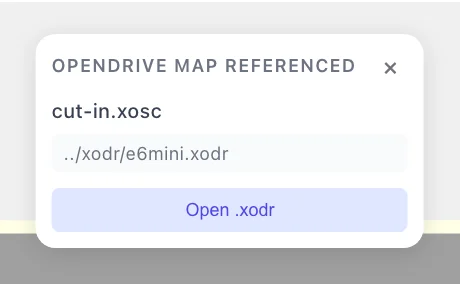
Click Open .xodr and choose the road file. The banner also has an ×; dismissing it ends the import without loading anything, so use Open .xodr unless you meant to cancel.
From a GitHub link
Section titled “From a GitHub link”Append ?open= and a GitHub file URL to the app URL:
https://drawtonomy.com/?open=https://github.com/esmini/esmini/blob/master/resources/xosc/cut-in.xoscThat link is live — try it:
Open the esmini cut-in scenario in drawtonomy →
drawtonomy fetches the .xosc, reads its RoadNetwork reference, and
pulls the .xodr from the same repository at the same commit or
branch. It also enumerates the Catalogs directories the scenario
references and loads the catalog files it finds — the one route where
catalogs resolve automatically.
What it accepts and what it does not:
| Accepted hosts | github.com file blob links, and raw.githubusercontent.com |
| Rejected | any other host, and tree/ directory links |
| Repository | must be public — the fetch is unauthenticated |
| Rate limit | catalog listing uses the unauthenticated GitHub API, capped at 60 requests per hour |
| Absolute road paths | a RoadNetwork pointing at a Windows path (C:\…) cannot be resolved; you are asked for the .xodr instead |
This makes a single link enough to share a runnable scenario with a reviewer — no download, no install.
Sharing your own edited scenario
Section titled “Sharing your own edited scenario”The ?open= route reads from GitHub, so to share a scenario you edited,
put the files where GitHub can serve them:
- In drawtonomy, Export →
OpenSCENARIO (.xosc)…with INCLUDE set to.xosc+.xodrso the road travels with the scenario. (Keep the relativeRoadNetworkpath the export writes.) - Commit and push both files to a public GitHub repository.
- Copy the
.xoscfile’s GitHub blob URL (thegithub.com/…/blob/…link from the file’s page) and append it tohttps://drawtonomy.com/?open=.
Anyone who opens that link gets your edited scenario, its road, and any
catalogs the repo contains — resolved automatically, since ?open=
loads catalogs from the same repo.
What import produces
Section titled “What import produces”After a successful import drawtonomy switches to Scenario mode by itself, and the LOGIC card fills in:
- Each OpenSCENARIO
Actbecomes a Phase, keeping its name. A scenario withCutInAndBrakeActshows a phase with that name. - Each
Eventbecomes an event card under the actor that performs it, labelled with the original event name. - The storyboard’s
StopTriggerbecomes the END CONDITIONS node — for exampleAfter CutInManeuver ends.
Click any event card to open the event editor. Triggers, actions,
dynamics profiles, and priorities all round-trip, so an imported
Time gap to actor trigger reads back as Time gap to actor with the
same threshold. Maneuver and ManeuverGroup names are preserved
under the ADVANCED section rather than shown on the card.
About the catalog warning
Section titled “About the catalog warning”Many published scenarios declare <CatalogLocations> and pull their
vehicle models from external catalog files. When you import such a
file, drawtonomy shows an informational toast:
This scenario references external Catalogs that were not provided. Drop the catalog files with the .xosc, or actors may not load.
Read it as information, not an error:
- It appears whenever the
.xoscdeclares catalog locations, whether or not anything is actually missing. - Standard vehicle catalog entries map onto drawtonomy’s built-in models, so in most cases every actor loads with the right shape, colour, and starting position, and the scenario plays through.
- The toast disappears on its own after a few seconds; re-import the file if you need to read it again.
- Catalogs do resolve automatically over the
?open=GitHub route.
If actors really are missing after an import, that shows up plainly — the affected entities do not appear on the canvas at all.
Editing an imported scenario
Section titled “Editing an imported scenario”You can change anything after import, but one detail catches people
out. The Variables panel — the {x} button on the LOGIC card —
says it directly:
Editing values here does not change actions already imported with a literal value (references are resolved at import time).
In other words: if the original .xosc used
$HostVehicle_Speed and that parameter was 27.7, the imported
action holds 27.7, not the reference. Changing the parameter
afterwards does not move the action. Edit the action itself.
Playing and inspecting
Section titled “Playing and inspecting”The transport row along the top of the LOGIC card drives the run: play and pause, reset to start, playback rate, follow camera, ghost trails, and the verdict badge. Drag or click the timeline to seek to any moment. See Playback for the full set.
Two habits worth adopting for imported scenarios:
- Set the follow camera before you play. Imported road networks are often kilometres long, and the default camera does not track anything.
- Seek instead of watching. Every pose comes from the simulation, so pausing on the exact frame of a cut-in is exact, not an estimate.
Troubleshooting
Section titled “Troubleshooting”| Symptom | Cause |
|---|---|
Nothing loads after picking a .xosc | The road file was never supplied. Re-import and use Open .xodr on the banner. |
| Actors all sit on top of each other | The road did not load, so every entity fell back to the origin. Check that the .xodr matches the scenario. |
| An actor stops part-way and never moves again | It reached the end of the road. Extend the road, or use a longer .xodr. |
| Catalog toast on every import | Expected for any .xosc with <CatalogLocations> — see above. |
| A GitHub link is refused | Only github.com blob links and raw.githubusercontent.com are accepted, and the repository must be public. |
See also
Section titled “See also”- Simulate an OpenSCENARIO file in the browser — the player-focused guide, including video export.
- Phases and events
- Playback
- 3D view
- What is OpenSCENARIO?
- What is esmini?