
Phases and events — how scenario logic is structured
本頁內容尚未翻譯。
The LOGIC card at the bottom of the screen is where a scenario’s behaviour lives. This page explains what its parts are and in what order they run.
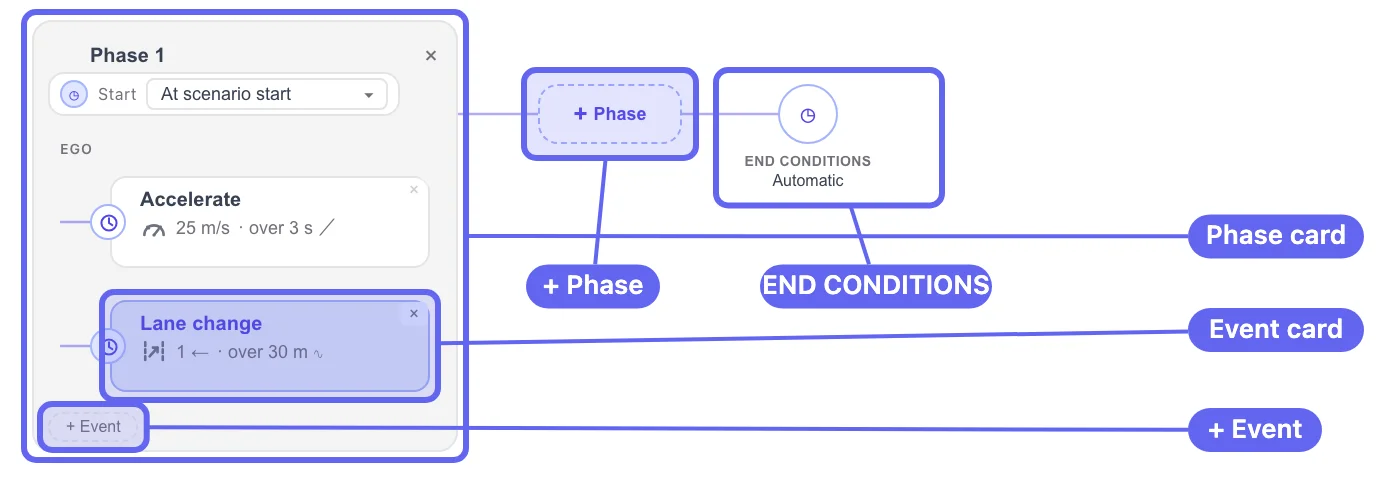
The four levels
Section titled “The four levels”The graph nests four things, outermost first.
| Level | What it is | OpenSCENARIO |
|---|---|---|
| Phase | A named container with a Start condition. | Act |
| Actor row | One row per entity taking part in the phase. | ManeuverGroup (its entityRef) |
| Event | One trigger plus one or more actions. | Event |
| END CONDITIONS | The node at the end of the graph. Decides when the run stops. | the storyboard’s StopTrigger |
Phases
Section titled “Phases”Click + Phase to add one. The button is disabled until the scenario has at least one actor — its tooltip says Add an actor first.
A new phase does not arrive empty. One click produces Phase 1, an
actor row for your entity, and Event_1 carrying a default
Change Speed action and a default Simulation time trigger. The
event editor opens on the right at the same time.
Imported scenarios keep the original act names, so a phase may be
called something like CutInAndBrakeAct rather than Phase 1.
The Start row
Section titled “The Start row”Every phase has a Start row with three options:
| Option | Meaning |
|---|---|
| At scenario start | The phase becomes active as soon as the run begins. |
| After a delay… | The phase becomes active a fixed number of seconds into the run. |
| Custom… | Any trigger condition — the same catalogue used for event triggers. |
A phase’s Start condition is independent of the phases drawn above it. Two phases both set to At scenario start both become active at t=0. Sequencing comes from the Start conditions you set, not from the vertical order of the cards.
Deleting a phase
Section titled “Deleting a phase”The small × on a phase card deletes it, along with every event, action, and trigger inside it — with no confirmation prompt. Undo it with Ctrl+Z or the ↶ button in the toolbar.
Right-clicking a phase gives you Add Event (actor) and Delete Phase.
Events
Section titled “Events”An event is the unit of behaviour: one trigger, one or more actions, applied to one actor.
Add one with + Event in the actor’s row. Each new event arrives
with the same defaults as the first — a Change Speed action and a
Simulation time trigger at 0.00 s. Two events left at 0.00 s
fire simultaneously, so set the trigger before you move on.
Reading an event card
Section titled “Reading an event card”Each card carries two lines:
- Top line — the event name, the simulation time at which it fired
(
t=2.05s), and a✓once it has completed. - Bottom line — a summary of the action, for example
8.3 m/s · over 2 s,1 → · over 30 m,same lane as Ego · over 3 s, orparallel 0 m/s · @-4 m/s².
The fire time and the check mark are filled in during playback, so the graph doubles as a run log.
The event editor
Section titled “The event editor”Selecting a card opens the editor at the top right, headed actor › event.
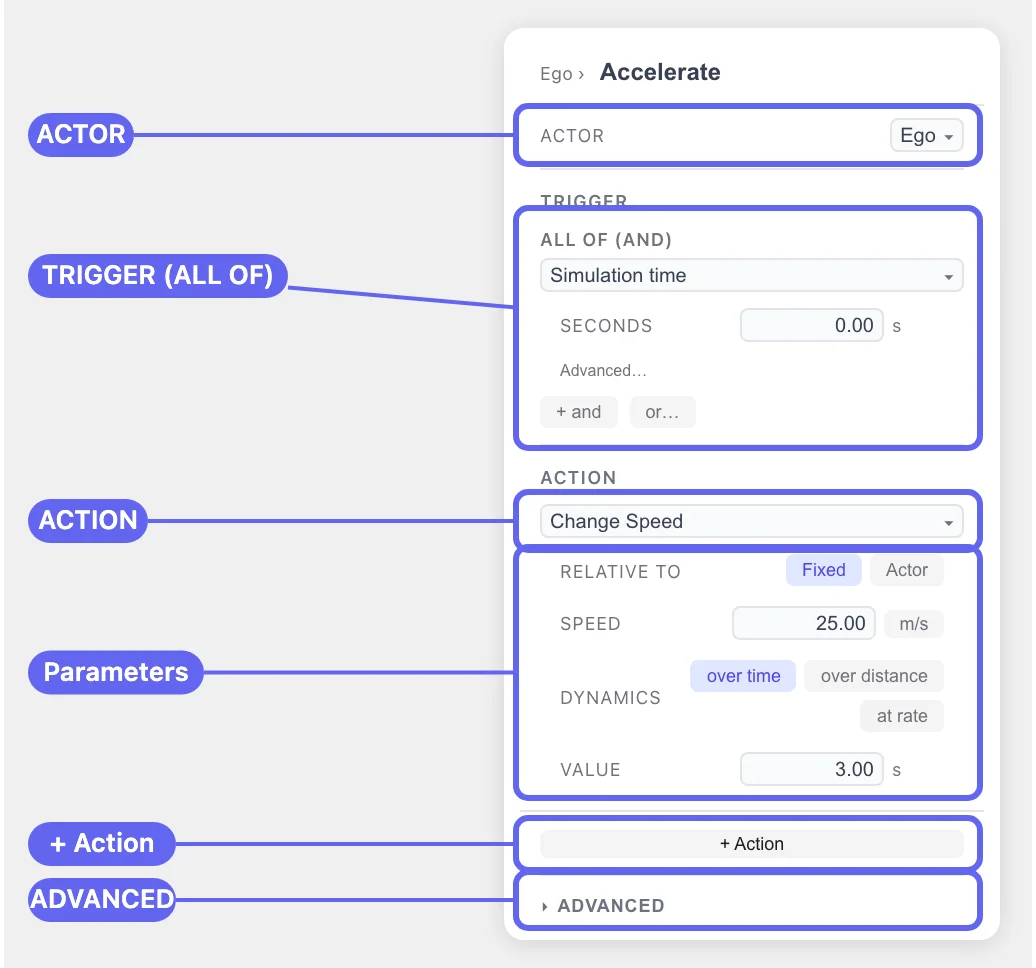
| Section | What it holds |
|---|---|
| ACTOR | The entity the event acts on. |
| TRIGGER | One or more conditions, grouped. See Triggers. |
| ACTION | What happens when the trigger fires. See Actions. |
| + Action | Adds another action to the same event — they all run when the trigger fires. |
| ADVANCED | The attributes below. |
ADVANCED
Section titled “ADVANCED”| Field | Options | OpenSCENARIO |
|---|---|---|
| PROFILE | Linear / Cubic / Sinusoidal / Step | dynamicsShape |
| PRIORITY | Auto / overwrite / parallel / skip | Event@priority |
| REPEAT (EVENT) | how many times the event repeats | Event@maximumExecutionCount |
| REPEAT (GROUP) | how many times the actor’s group repeats | ManeuverGroup@maximumExecutionCount |
| MANEUVER | the maneuver name the event belongs to | Maneuver@name |
| DELAY AFTER MET | seconds to wait after the trigger is satisfied | Condition@delay |
PRIORITY decides what happens when this event fires while another
event is still running on the same actor: overwrite stops the
running one, parallel lets both continue, and skip drops the new
one. Auto lets drawtonomy pick.
MANEUVER exists mostly for round-tripping. drawtonomy does not draw maneuvers or maneuver groups as separate boxes, but it preserves their names so an imported scenario exports with the same structure.
What runs when
Section titled “What runs when”- The run starts. Every phase whose Start condition is already satisfied becomes active.
- Inside an active phase, each event evaluates its TRIGGER every step. When the trigger is satisfied — plus any DELAY AFTER MET — the event’s actions start.
- Actions run to completion according to their DYNAMICS (over a time, over a distance, or at a rate).
- The run stops when the END CONDITIONS node is satisfied. Left on
Automatic, that means “when everything has finished”. - If a FAIL CONDITION triggers at any point, the run ends with a
FAILverdict instead.
See End and fail conditions for steps 4 and 5.
Variables and parameters
Section titled “Variables and parameters”The {x} button on the LOGIC card opens the PARAMETERS and
VARIABLES panel — OpenSCENARIO’s ParameterDeclarations and
VariableDeclarations. Parameters are fixed at the start of a run;
variables can be changed during one with the Set Variable and
Modify Variable actions.
One caveat, stated in the panel itself: editing a parameter does not retroactively change actions that were imported with a literal value, because parameter references are resolved at import time.